After installing an Outlook update, my PST file seems to have disappeared and I can’t open my old emails, contacts, or folders. I’ve checked the usual Outlook data file locations but still can’t find it. I really need help figuring out if the update removed it, moved it, or damaged it, and what steps I can take to recover the missing PST file safely.
I learned this the hard way. A PST vanishes during a folder cleanup, and Outlook suddenly looks empty. It feels worse than it is, but you need to stop using the PC for a bit. When Windows deletes a file, it often only removes the pointer. The data might still be sitting on the drive until new stuff lands on top of it. So don’t keep downloading, installing, or moving files around.
Start with the easy places
First thing I checked was the Recycle Bin. If you did a normal delete, the PST might still be there. If you used Shift+Delete, skip this part.
Then check any sync service tied to the folder. OneDrive, Dropbox, and similar apps usually keep a trash area or deleted files page. Don’t rely on the folder on your PC. Open the service in your browser and look there.
Check Windows for older folder copies
Sometimes Windows kept an older version of the folder, and you get lucky.
Usual PST location:
C:\Users\YourName\Documents\Outlook Files
Open the folder where the file used to live. Right click it, then pick “Restore previous versions.” If you see snapshots from before the deletion, open one and copy the PST out to a different place.
If it’s gone, scan the drive
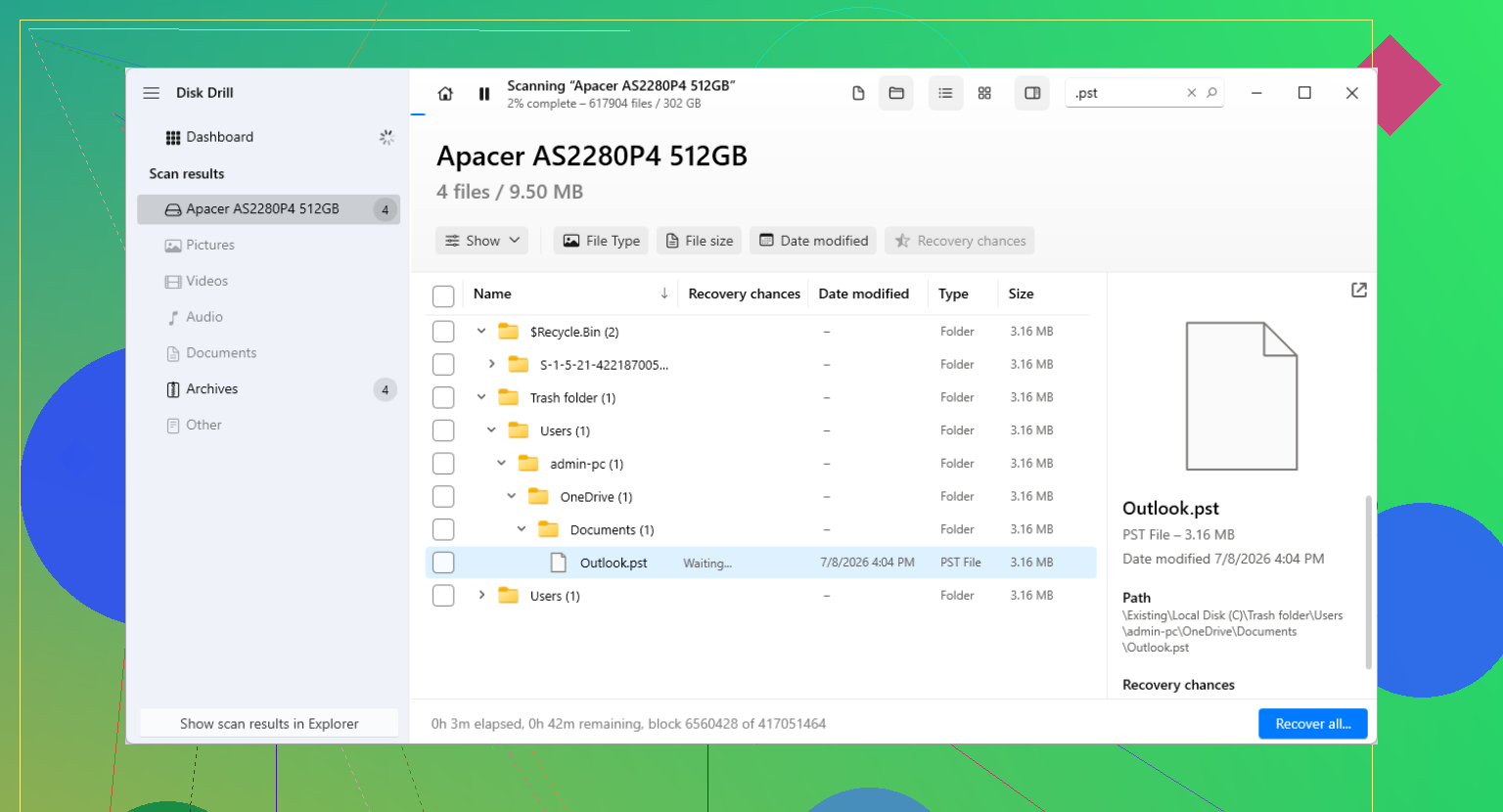
When the file isn’t in the Bin, the cloud trash, or an older folder version, I’d move to recovery software. I had decent results with Disk Drill. The main point is simple. Don’t write more data to the same drive if you want better odds.
The safest routine looks like this:
Install the recovery app on another drive if you have one, or run it from external storage.
Scan the drive where the PST was deleted, usually C:.
Filter or search results for .pst.
Look at file sizes. Outlook often makes a fresh tiny PST, and people grab the wrong one. Your old file is often much larger.
Recover the file to another folder or another drive. Don’t put it back in the same spot yet.
Open the recovered file the right way
This part trips people up. Outlook sometimes creates a new blank data file after the old one goes missing. You open Outlook, see no old mail, and assume recovery failed. Not always. You might only be looking at the replacement file.
In Outlook, go to:
File > Open & Export > Open Outlook Data File
Pick the recovered PST. If the file is good, your old folders should appear in the left pane. Once you confirm your mail is there, go into Account Settings and switch Outlook back to the recovered file as the default data file.
IMAP helps, but only up to a point
If your account is IMAP, like Gmail, Yahoo, Comcast, and a lot of others, your inbox and synced folders usually live on the mail server too. Reconnecting the account often rebuilds those through a new OST file.
What I’ve seen people miss is the local-only stuff. Archives, imported mail, odd custom folders, old saved folders, “On My Computer” type storage, all of it might have lived only in the PST. So even if the mailbox syncs back, the missing PST still matters.
After you get it back
Once the file opens and your mail shows up, set up backups right away. Keep the PST in a folder included in backups. Copy it to an external drive now and then. Export a backup on a schedule if you need to. Years of mail in one file with no second copy is asking for trouble. I did that once. Wasn’t fun tbh.
If the recovery scan finds more than one PST, start with the largest one and test it in Outlook first. In my exp, the tiny ones are often junk or fresh empty files.
9 Likes
I’d check one thing before following the file recovery route from @mikeappsreviewer.
Outlook updates often do not delete the PST. They lose the path to it, or switch your profile to a new blank data file. That looks the same as “gone”.
Try this first.
Control Panel, Mail, Show Profiles.
Open your current profile, then Data Files.
See if Outlook points to a weird path, old drive letter, or a fresh small PST.
Also search Windows with these filters:
*.pst
*.ost
Sort by Date modified and Size. If you see a large PST in AppData, Documents, or an old user folder, open it from Outlook with File, Open and Export, Open Outlook Data File.
One more place people miss:
C:\Users\YourName\AppData\Local\Microsoft\Outlook
Some older setups stash files there.
If the update damaged the mail profile, make a new Outlook profile and attach the found PST. I’ve fixed this more than once with zero file recovery needed. Annoying, but fast.
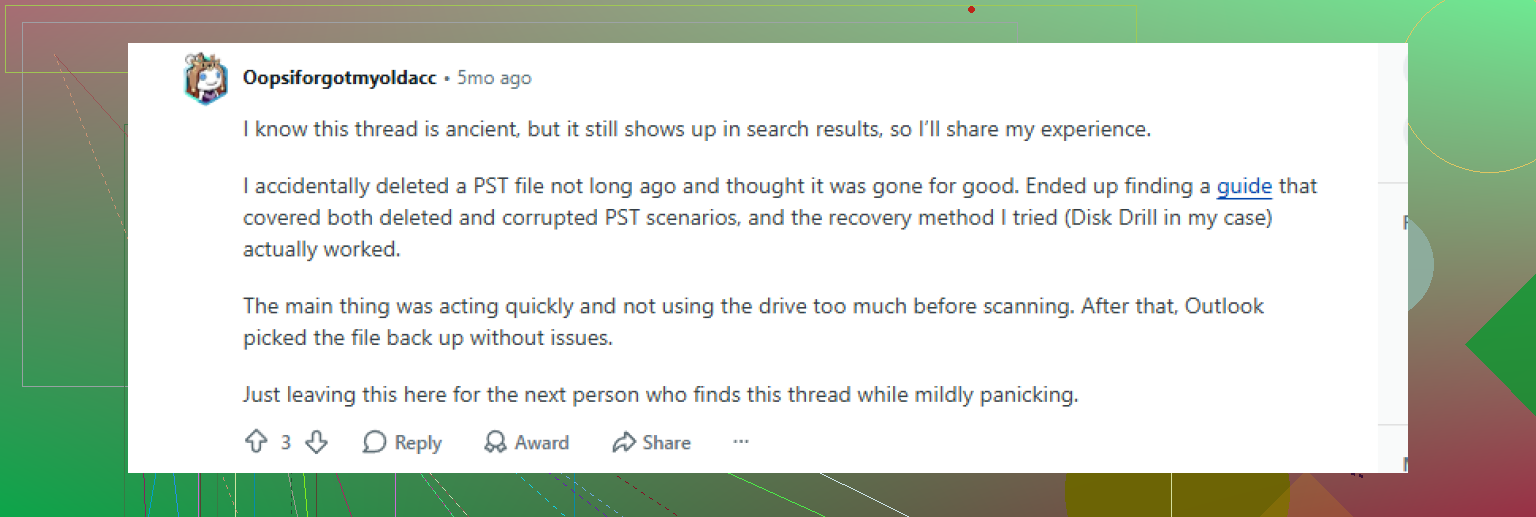
If no PST shows up anywhere, then yes, Disk Drill is a solid next move for Outlook PST recovery. Scan for large .pst files and restore them to another drive. Small PSTs are often empty replacements, so dont grab the first hit.
Also worth checking this Outlook PST recovery discussion for extra cases people ran into:
real-world fixes for recovering a deleted Outlook PST file
If you tell us whether this was POP, IMAP, or an archive PST, the next step gets a lot clearer.
I’d push back a little on the “it must be deleted” angle from @mikeappsreviewer and @sonhadordobosque. After Outlook updates, I’ve seen the PST still exist but become detached, hidden, or even renamed as an AutoArchive file more often than truly erased.
A few checks that are different from the usual file search:
- In Outlook, go to File > Account Settings > Account Settings > Data Files and look for any entry marked offline/unavailable.
- Check AutoArchive settings. Sometimes old mail got moved into an archive PST and the update made Outlook stop showing it.
- Search Windows not just for
*.pst, but also for:archive*.pstbackup*.pst*.tmp
- Turn on hidden items in File Explorer, then search again.
- If you had a second Windows profile at some point, check
C:\Users\OldProfileName\Documents\Outlook Files
Also, if the file is found but won’t open, run SCANPST.EXE. A lot of people skip that and assume the file is gone when it’s just slightly corrupted after the update. Microsoft hides that tool in Office folders, annoyingly.
If nothing turns up, then yeah, Disk Drill is a sensible next step for Outlook PST recovery. I’d use it more as a last resort than first move, but it’s solid for scanning deleted or missing PST files.
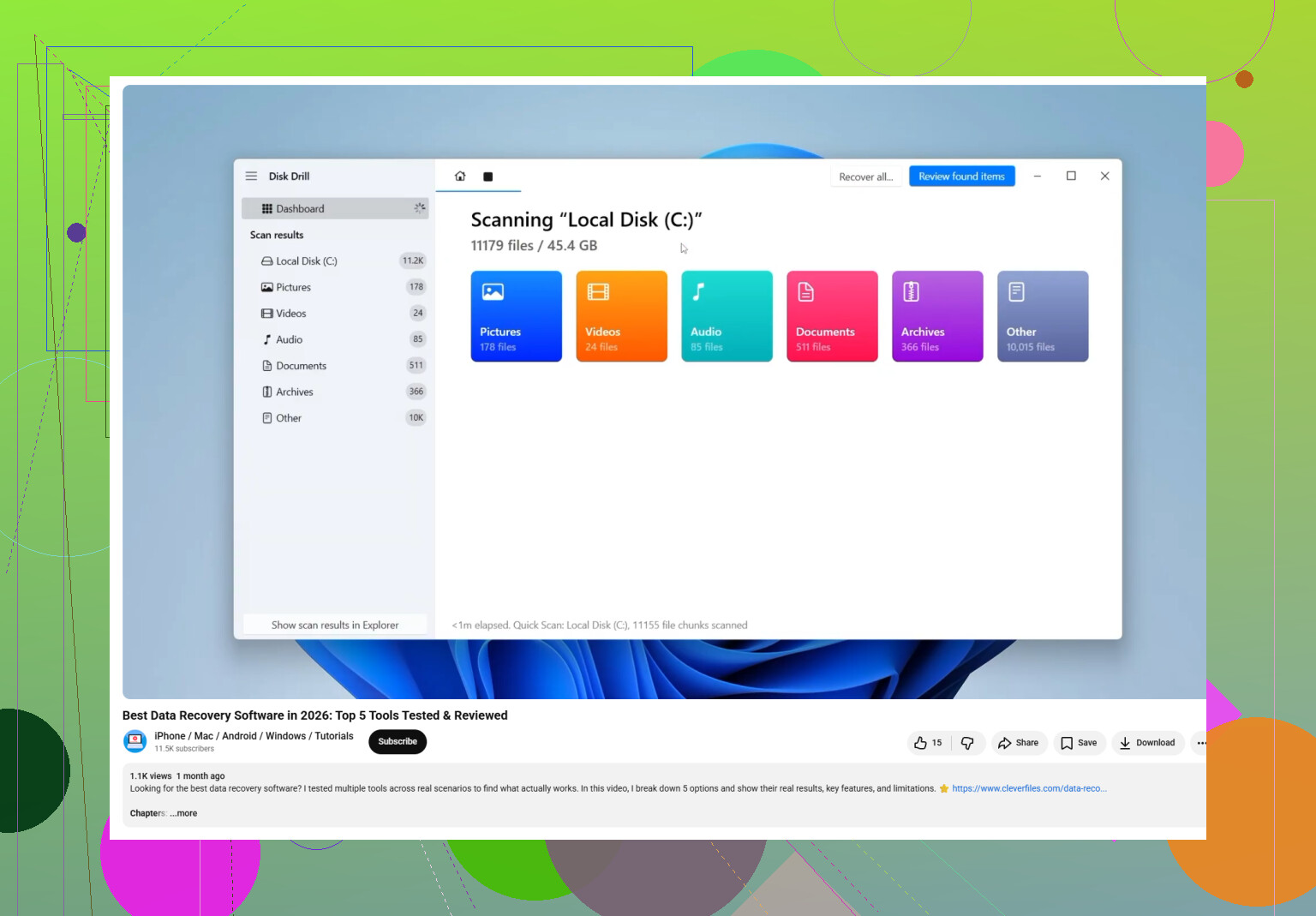
For anyone trying to choose the best software for Outlook PST recovery, this video is actually a decent starting point:
best PST recovery software walkthrough
One more thing people miss: if this was a POP account, the PST matters a lot more. If it was IMAP/Exchange, your mail may still be on the server and only the local folders are missing. Big diffrence. If you can, check whether your Contacts/Calendar are also missing, becuase that helps narrow down whether this is profile damage, file corruption, or actual deletion.
One angle missing from @sonhadordobosque, @andarilhonoturno, and @mikeappsreviewer: check whether Outlook updated from 32-bit to 64-bit Office paths or vice versa. I’ve seen PSTs stay put while Outlook suddenly looks in the wrong Office profile branch and acts like the file vanished.
A couple non-obvious checks:
- Event Viewer → Windows Logs → Application
Look for Outlook or Office errors right after the update. If you see profile-load or data-file errors, that points more to config/corruption than deletion. - Windows Search index issue
Sometimes the PST is there, but Windows search misses it. Use Command Prompt:
dir C:\*.pst /s /a
That can find files Explorer search skips. - File ownership/permissions
Right-click suspected PST → Properties → Security. Updates sometimes leave Outlook unable to access a file sitting in an old user folder. - Test in another Outlook profile on the same PC user account
Not just a new mail profile, but a clean Windows user if needed. Sounds excessive, but it can expose permission/profile weirdness fast.
If you do find the PST but it opens with errors, copy it first, then repair the copy. Don’t work on the only version.
If it truly was deleted, Disk Drill is a reasonable recovery option.
Pros of Disk Drill
- easy PST filtering
- good at finding deleted large files
- preview and size info help spot the real mailbox
Cons
- scan results can be noisy
- recovered filenames/folder structure may be messy
- best results depend heavily on how much the drive was used after loss
Small disagreement with the recovery-first approach: on update-related cases, I’d still treat actual deletion as less likely than profile/path breakage. But if dir /s finds nothing, then recovery mode makes sense fast.