My WD My Passport suddenly stopped showing up correctly, and it has important photos and work files I haven’t backed up anywhere else. I’m trying to figure out if DIY WD My Passport data recovery is worth the risk or if I should go straight to a professional before I make things worse.
I’ve had this mess with a WD My Passport before, and yeah, it gets ugly fast. Most of the time these drives behave fine for years. Then one day they stall, vanish, or start throwing weird errors, and your stomach drops.
The first move is simple. Stop using the drive now. If files were deleted, or the drive is acting off, every extra write puts more of your stuff at risk. I learned this the hard way on an old photo archive. Left it plugged in, tried random fixes, made it worse.
Check the drive before you do anything else
On Windows, right-click Start and open Disk Management.
What you want to see is the WD drive listed there with roughly the right size. If it shows up, even if the partition looks damaged, you still have a decent shot at handling recovery yourself.
If it does not appear at all, or it’s clicking, grinding, buzzing, or spinning up and down, stop. At that point I would treat it like hardware failure. Software won’t fix a bad head or dying board. A recovery lab is the safer path.
What I’d do if the computer still sees it
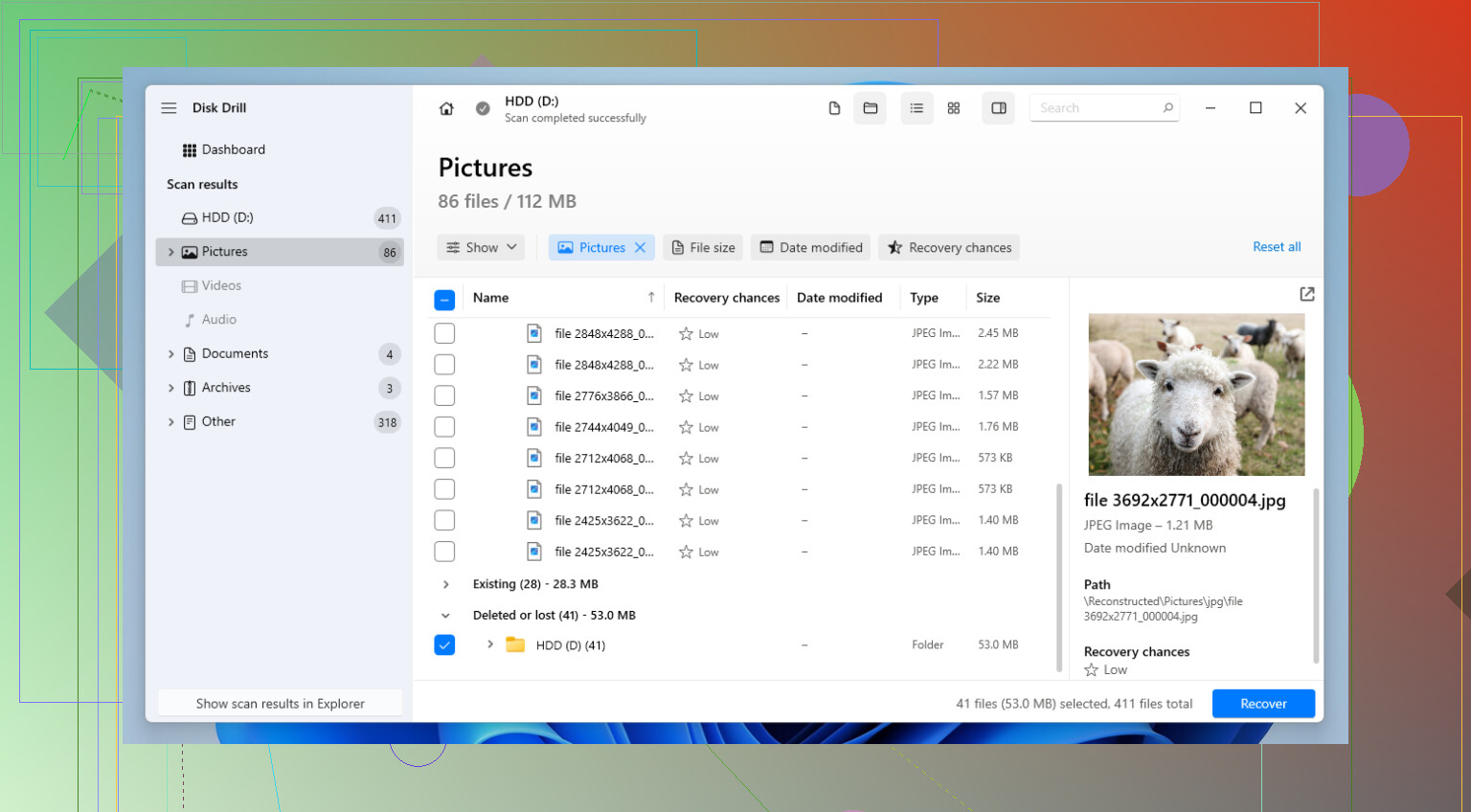
If the drive is recognized, I’d start with recovery software. I’ve tried a bunch over time, and for a WD My Passport I’d go with Disk Drill. Main reason, it handles the file systems these drives usually ship with, NTFS, FAT32, and exFAT, and it’s less annoying to sort through than some of the older tools.
Download and install it on your main computer. Do not install it onto the WD drive you’re trying to recover from.
Open the program, then connect the My Passport.
Select the drive and start the scan with 'Search for lost data.'
Pick 'Universal Scan' if it gives you the option. It takes longer, but I’ve had better results with it on damaged external drives.
While it scans, start checking the found files. I usually go straight to 'Deleted or lost' and 'Reconstructed.' Preview matters a lot. If a photo opens in preview, or a document looks normal there, your odds are good for a clean recovery.
Mark the files you want, hit 'Recover,' and save them somewhere else. Not back onto the same WD drive. I know this sounds obvious, but people do it when they’re panicking.
Two other tools people bring up a lot
For small mistakes, there are lighter options.
Recuva is fine if you deleted a few files and the drive itself still works normally. The interface looks old, and I wouldn’t trust it for serious corruption, but for basic accidental deletion it’s fast and easy.
TestDisk is the one people mention when a partition disappears or the disk suddenly shows as uninitialized. It’s free, text-based, and kind of unforgiving. I’ve seen it restore a partition table and bring files back without a full recovery pass, which feels great when it works. I’ve also seen people poke the wrong setting and dig the hole deeper. So yeah, tread lightly.
The part people mess up with My Passport drives
This part matters more than most guides admit.
Do not pull the drive out of the plastic case unless you know the exact model behavior and have a good reason. A lot of My Passport units use hardware encryption on the USB bridge board inside the enclosure. If you remove the bare drive and hook it up another way, the data often shows up as garbage, RAW space, or an empty volume. I saw someone do this thinking the enclosure was the problem, and it turned a bad day into a worse one. If the USB port is damaged, getting the board repaired by someone with soldering skill makes more sense than bypassing it.
If you set a password through WD Security, you need it. No cute workaround here. The AES-256 hardware encryption is doing its job. Recovery tools won’t read the files until the drive is unlocked through WD’s own method.
After recovery, fix your setup
Once your files are safe, make a backup plan you’ll stick to. Doesn’t need to be fancy. A second external drive helps. So does OneDrive or Google Drive for the stuff you care about most. WD points people toward Acronis these days, which is fine, but even a plain copy of your important folders to another place beats doing this whole panic routine agian.
If your drive still appears in Disk Management and stays quiet, I’d try software first. If it’s gone from there or making bad noises, I wouldn’t keep testing it.
10 Likes
I’d split this into one question. Is the drive failing physically, or is the file system messed up.
If your WD My Passport spins normal, shows the right size somewhere in Windows, and does not click, DIY is worth a shot. If it clicks, drops off after a few seconds, asks to format, or freezes Explorer hard, I’d stop fast. Those symptoms often get worse with every reconnect.
Small disagreement with @mikeappsreviewer. I would not start by scanning the original drive if the data matters a lot. I’d clone it first, sector by sector, onto another disk, then work from the clone. Fewer reads on a weak drive. Better odds if it degrades mid-process. On Windows, HDD Raw Copy Tool is the easy option. On Linux or Mac, ddrescue is the safer pick if you know your way around it.
If the drive is stable enough to read, Disk Drill is a solid choice for WD My Passport data recovery. It’s easier to sort files by preview and file type than a lot of older tools. Recover to a different drive. Never back onto the Passport. Sounds obvios, people still do it.
One My Passport gotcha. Do not shuck the enclosure unless you know the exact board setup. Many WD models tie the USB bridge to hardware encryption. Swap the connection path and your files look scrambled.
For a simple explainer, this Western Digital My Passport data recovery guide is decent: watch this WD My Passport data recovery walkthrough
Short version. DIY is fine for logical damage. Bad noises, disconnect loops, burnt smell, dead USB port with no detection at all, lab time. That costs more, but so does making it unrecoverble.
If it were my WD My Passport, I would treat DIY as a maybe, not an automatic yes.
I mostly agree with @mikeappsreviewer and @sonhadordobosque, but I’m a little more conservative about when to stop. People hear “drive is detected” and assume that means it’s safe to keep poking at it. Not always. A drive can still show up and be half-dead.
My rule is pretty simple:
- DIY is reasonable if the drive powers on normally, stays connected, and you can read at least some sectors without freezes
- DIY is not worth it if it keeps disconnecting, gets insanely slow, smells weird, or makes any clicking/chirping noise
Also, I would not run CHKDSK, First Aid, “scan and repair,” or any WD utility that wants to “fix” the disk before recovery. That stuff is for after your files are safe, not before. Way too many people turn recoverable data into missing data with those repair tools. It’s kinda brutal.
Before scanning for files, read this on why creating a full disk image before data recovery can save your files. Cloning first matters because every extra read from a failing My Passport can make recovery worse. Work from the copy if you can, not the original.
If the drive is stable enough, Disk Drill is a decent choice for WD My Passport data recovery because it’s easier to preview photos and docs than some older tools. I wouldn’t call it magic, but for logical damage it’s usuallly one of the less annoying options.
One point I’ll push harder on than @mikeappsreviewer: if these are irreplaceable family photos or critical work files, your “budget” should include at least considering a lab before experimenting. DIY is cheaper right up until it isn’t.
I’m slightly less optimistic than @mikeappsreviewer here. “Detected” is not the same as “healthy enough to experiment on.”
What I’d judge first is behavior, not just visibility:
- shows correct capacity and stays online = maybe safe for DIY
- appears as 0 bytes, vanishes mid-scan, or hangs the whole system = stop
- any clicking, chirping, repeated spin-up/spin-down = no DIY
I agree with @sonhadordobosque and @viaggiatoresolare on one big thing: avoid repair actions before recovery. No format, no CHKDSK, no “initialize disk,” no WD diagnostics trying to fix metadata.
One thing I’d add: check SMART with a read-only tool if the drive stays connected. If reallocated sectors, pending sectors, or read errors are climbing, that’s your warning that time is limited.
For software-only cases, Disk Drill is reasonable.
Pros:
- easy file preview
- good for photos/docs on damaged logical volumes
- less intimidating than TestDisk-style tools
Cons:
- not a miracle on unstable hardware
- deep scans can be slow
- paid recovery limits can annoy people
So yes, DIY WD My Passport data recovery can be worth it, but only if the drive is calm and consistent. If the files are truly irreplaceable, I’d cap my own testing very early and consider a lab before curiosity turns into permanent loss.