My synced media storage on my iPhone suddenly increased a lot, even though I didn’t add new music, movies, or photos. I’m trying to figure out what caused the storage jump and how to reduce synced media size without losing anything important. Has anyone seen this iPhone synced media storage issue before?
Apple renamed this stuff a few times, so yeah, the wording is messy. 'Synced Media' and 'Synced Content' point to the same category. If you moved files from a computer to your iPhone with Finder, old iTunes workflows, or the Apple Devices app, this is what you are looking at.
What synced media means on iPhone, and why it is different from your normal Photos library
On my phone, synced media meant files pushed over from a Mac. Music, movies, TV episodes, and photo folders. It was a computer-to-phone transfer, either with a cable or over local Wi-Fi.
The part people miss is control. iCloud Photos syncs both ways. Delete on the phone, it changes everywhere. Synced Media does not work like that. The computer stays in charge, so your iPhone treats those files like borrowed stuff. You see them, you use them, but you do not remove them from the phone directly. You go back to the computer and change the sync source there.
Why synced content suddenly looks huge
After iOS 17, storage reporting got weird for a lot of people. I saw examples where 20GB of music showed under Music, then the same 20GB looked like it showed up again under Synced Content. It feels like your phone ate the same library twice.
From what people have been seeing, this is often a storage display bug, not true duplicate files. Still bad, though. If iPhone thinks storage is full, downloads fail, updates stall, and the phone starts acting cramped even when the math is off.
How I removed synced media after iTunes disappeared
Apple broke the old iTunes setup into other apps. On Mac, you use Finder. On Windows, you use the Apple Devices app.
Mac steps
- Plug the iPhone into your Mac.
- Open Finder.
- Click your iPhone under Locations.
- Open the tab for the type of content, like Music, Photos, or Movies.
- Turn off the sync option, such as 'Sync photos to your device.'
- Click Apply.
Windows steps
- Install Apple Devices from the Microsoft Store.
- Connect the iPhone.
- Open the same content tabs you would see in Finder.
- Disable the synced category you want gone.
- Apply the change.
If the normal method does nothing, try the empty folder trick
I had better luck with this when old synced photos refused to leave.
- Make a new empty folder on your desktop.
- In Finder or Apple Devices, set photo syncing to use that empty folder.
- Click Apply.
The phone checks the source folder, sees zero files, and wipes the synced copies from the device. It is a dumb workaround, but it works more often than the clean checkbox method. A bit janky, yeah.
Is deleting synced media safe
Yes. You are removing the iPhone copies only. The originals stay on the computer. I know people worry they are about to nuke their library, but this step does not touch the source files.
Why your iPhone still feels slow after you clear it
Synced content is usually one chunk of the problem, not the whole mess. On mine, the bigger issue ended up being years of junk sitting in Photos. Near-duplicates, burst shots, random 4K clips, old screenshots from apps I do not even use anymore. Storage gets eaten in layers.
Once free space gets tight, iPhone starts dragging. Temporary files need room. Background tasks need room. Updates need room. So even if you fix synced content, the lag sticks around if the rest of your storage is still packed.
After clearing the synced side, I used Clever Cleaner to sort through the rest. What helped most was seeing screenshot sizes before deleting, sorting the biggest files first, and grouping near-identical photos so burst sets stopped clogging everything up. In my case, Finder cleanup plus Clever Cleaner freed about 15GB, and the slowdown stopped after taht.
13 Likes
What usually causes the jump is one of 3 things.
-
iOS re-categorized old files.
After an update, storage buckets shift. Music or photo sync data gets counted under Synced Media instead of where it used to sit. Size looks bigger, but your phone did not gain 20GB overnight. I disagree a bit with @mikeappsreviewer on one part, though. It is not always a bug. Sometimes Apple changed the label, not the storage. -
Offline files got folded into the same total.
If you use Apple Music, TV, Podcasts, or third-party players, downloaded stuff sometimes muddies the numbers. Check each app’s Downloads section. I’ve seen 8GB to 15GB sitting there while Synced Media got blamed for it. -
Photo caches rebuilt.
If you synced photo folders from a computer at some point, iPhone may rebuild indexes, thumbnails, and database files after an update or restore. Those support files take space too. Not huge by themselves, but enough to make the category jump and look sus.
What I’d do first:
Go to Settings, General, iPhone Storage, wait 2 to 3 minutes. The graph often recalculates.
Restart the phone.
Check if the number drops after charging overnight on Wi-Fi.
Look at Music, TV, Photos, Podcasts, Files, and VLC or Plex if you use them.
If the total still looks wrong, test free space in real life.
Try downloading a 2GB movie or recording a long 4K video. If it works, the reading is off. If it fails, space is truly gone.
For cleanup without losing your originals, target app downloads and photo junk first. Synced media itself is often less fixable from the phone. Clever Cleaner helped me find duplicate pics, giant screenshots, and old screen recordings fast. That freed more space for me than chasing the Synced Media label, tbh.
If you want a simple walkthrough, this Clever Cleaner review for iPhone storage cleanup is decent:
see how Clever Cleaner frees up iPhone storage
One more thing people miss. Shared albums, Messages attachments, and downloaded streaming content do not show up where you expect. Apple’s storage menu is kinda bad at explaing it.
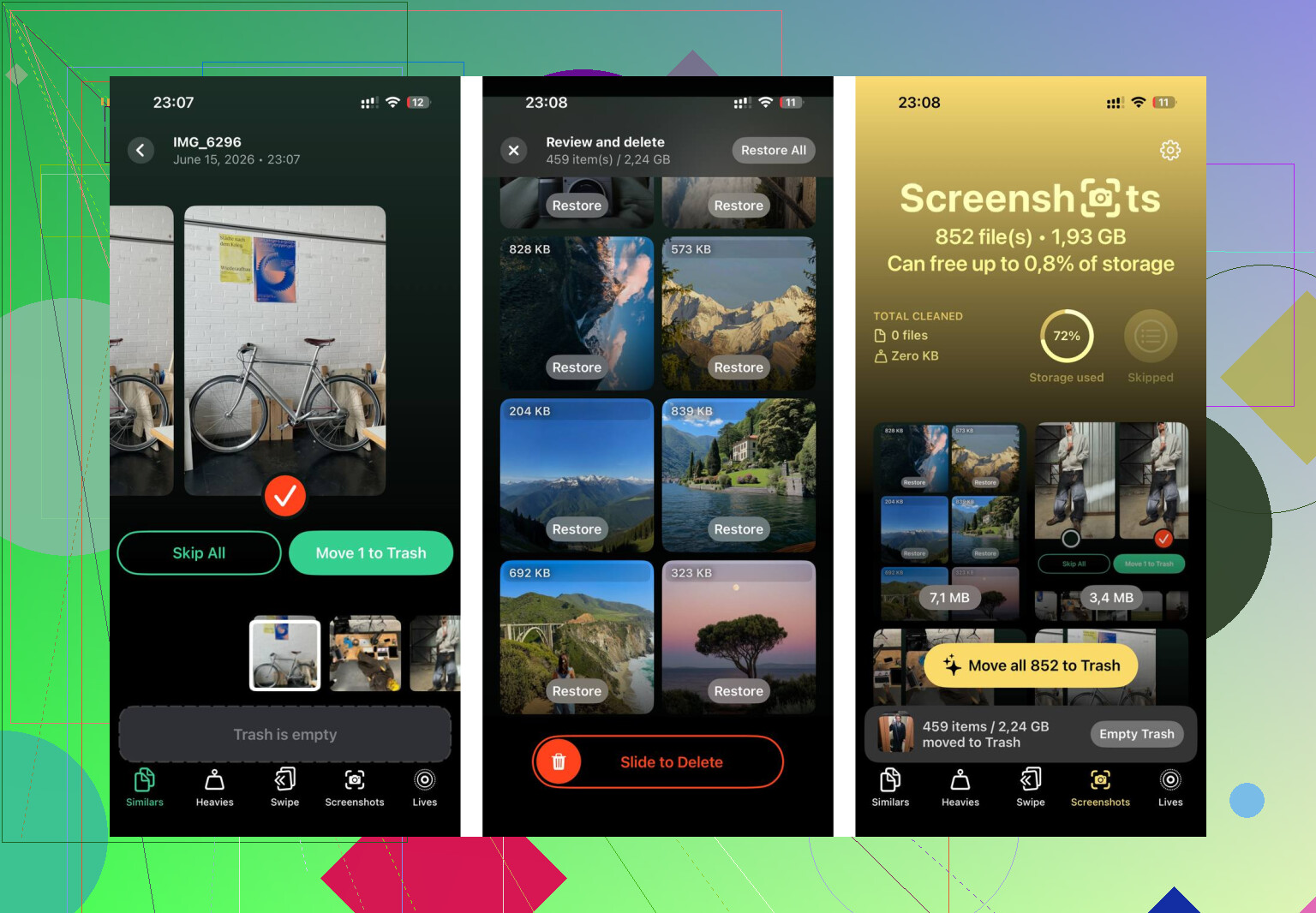
Big jumps in “Synced Media” are usually one of two things: re-indexing after an iOS update, or old computer-synced stuff getting counted differently. I mostly agree with @mikeappsreviewer and @suenodelbosque, but I’d push back on the idea that it’s just a display bug every time. Sometimes iOS really does rebuild databases, artwork, thumbnail sets, and media libraries, so the storage spike can be partly real.
What I’d check that they didn’t really stress:
- Settings > Music > downloaded music
- Settings > TV / Podcasts for offline files
- Files app for “On My iPhone”
- Voice Memos, because those can get weirdly huge
- Messages attachments, since storage categories on iPhone are kinda messy and overlap-y
Also, if you use Apple Music with Sync Library on, toggling that off and back on can force a cleanup/recount. Not always, but I’ve seen it fix goofy totals. Same idea with signing out of Media & Purchases and signing back in, though that’s more annoying.
One more thing: if the jump happened right after a backup restore or major update, wait a day. Seriously. Leave it charging on Wi-Fi overnight. iOS does a bunch of background cleanup later and the numbers can settle down. It’s dumb, but taht’s Apple.
If you want to reduce storage without touching originals, the safest wins are usually duplicate photos, giant screenshots, and forgotten videos rather than obsessing over the “Synced Media” label. Clever Cleaner is solid for that. This page is a decent read if you want a practical iPhone cleanup tool rundown: best iPhone cleaner app for freeing storage fast.
If the number never drops, I’d honestly suspect stale sync metadata from an old Finder/iTunes sync more than “new” media. Apple loves changing labels and pretending nothing happend.
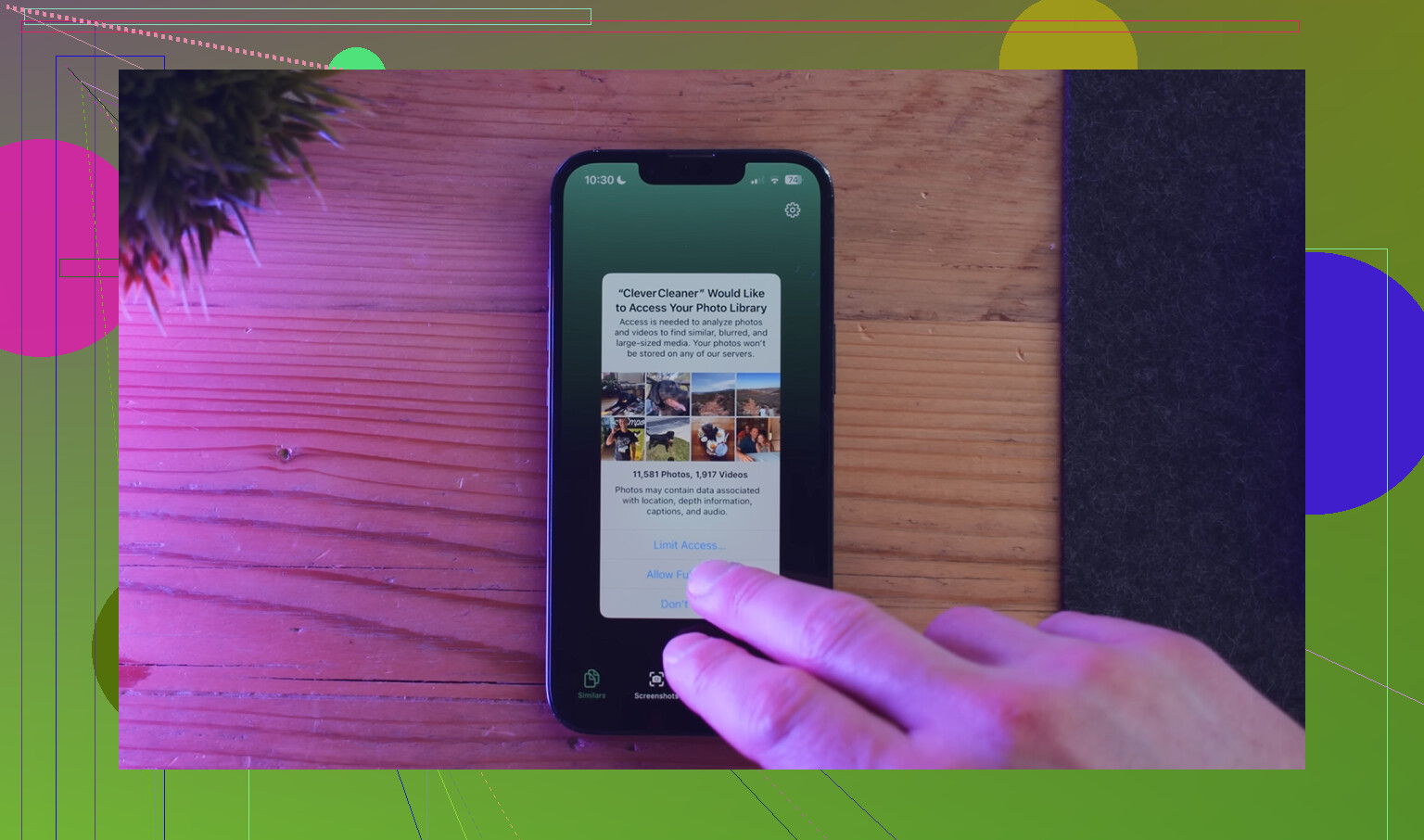
I’d add one angle the others only brushed past: DRM re-downloads and artwork caches. If you changed region, renewed Apple Music, re-synced purchased media, or updated a bunch of album art, iPhone can rebuild protected-file metadata and artwork databases. That can bloat “Synced Media” without you adding actual songs or videos.
So I only partly agree with @suenodelbosque, @reveurdenuit, and @mikeappsreviewer that it’s mostly labeling. Sometimes the space jump is real, just not from new media files.
What I’d check differently:
- Compare Settings > General > iPhone Storage with the per-app totals
- Check Settings > Photos > Optimize iPhone Storage is enabled
- Look at Books too, since downloaded PDFs/audiobooks can hide there
- See if Media & Purchases was recently re-synced
- If you use a Mac, check whether Finder is set to convert higher bitrate songs
Best test: connect iPhone to a computer and see whether the sync tabs still show old selected libraries or photo folders you forgot about.
If you want to shrink space safely, remove stale computer-sync selections first, then clean local clutter. Clever Cleaner is decent for that second part.
Pros:
- fast at spotting duplicates and large videos
- easy for screenshots and similar photos
Cons:
- won’t directly fix broken Finder/iTunes sync metadata
- cleanup suggestions still need manual review to avoid deleting wanted shots
So yeah, I’d treat “Synced Media” as half storage issue, half accounting issue.