My iPhone keeps saying storage is almost full, but when I check photos, apps, and media, the numbers don’t seem to add up. I’ve deleted large apps, offloaded photos, cleared downloads, and even restarted, but the storage bar is still showing almost maxed out. What could be taking up so much hidden space, and what steps can I follow to safely free it up without losing important data?
This happens a lot on iPhones. The numbers in Settings often look wrong or incomplete.
Here is what usually eats storage that you do not see at first:
- System Data (old “Other” storage)
• Go to Settings > General > iPhone Storage
• Scroll until you see “System Data”
• This holds caches, logs, Siri data, keyboard data, temp files, etc.
• It can grow to 10–30 GB on some phones.
You cannot delete it directly, but you can shrink it:
• Restart your iPhone a few times in a row.
• Leave it on Wi‑Fi and plugged in overnight. iOS cleans more when charging.
• If it looks insane, backup to iCloud or computer, then do:
Settings > General > Transfer or Reset iPhone > Erase All Content and Settings
Then restore from backup. This often cuts System Data in half or more.
- App caches that do not show clearly
Some apps report small size, but store massive “Documents & Data”.
Big offenders:
• Social apps like Instagram, TikTok, Facebook
• Streaming apps like Netflix, Spotify, YouTube
• Messaging apps like WhatsApp, Telegram, iMessage
What to do:
• Open each app and look in its settings for “Clear cache”, “Clear downloads”, “Offline content”.
• For Netflix or Spotify, remove offline downloads.
• For WhatsApp, go to Settings > Storage and Data > Manage Storage and clear large chats and media.
• If the app still looks bloated in Settings > iPhone Storage, delete and reinstall it.
-
Hidden Photos and iMessage media
You said you offloaded photos, but check these:
• Photos > Albums > Recently Deleted. Empty it.
• Photos > Albums > Hidden. Delete what you do not need.
• Messages > Settings > Messages > Keep Messages. If it is set to “Forever”, switch to 1 Year or 30 Days.
• In Settings > General > iPhone Storage > Messages, tap in and remove “Photos”, “Videos” or “Other” attachments. -
iCloud-related confusion
Sometimes storage looks off because:
• iCloud Photos is on and “Optimize iPhone Storage” is off. That keeps full‑res copies on device.
• To fix, go to Settings > [your name] > iCloud > Photos and turn on “Optimize iPhone Storage”.
• This reduces local space used by phots over time. -
Mail and offline files
• Email apps keep large attachments. In Settings > Mail, limit how many days to sync or remove accounts you do not use.
• Check Files app > On My iPhone, delete old downloads, offline docs, and video files. -
Backups on the device
• Connect the iPhone to a computer with Finder or iTunes. Old local backups sometimes sit there and confuse what you think is used.
• On phone, go to Settings > [your name] > iCloud > iCloud Backup and check which device backups exist. Delete old device backups you do not need. -
Use a cleaner tool to speed this up
If you do not want to dig through every app, a cleaner style app helps point out large junk like duplicate contacts, repeated photos, and similar clutter.
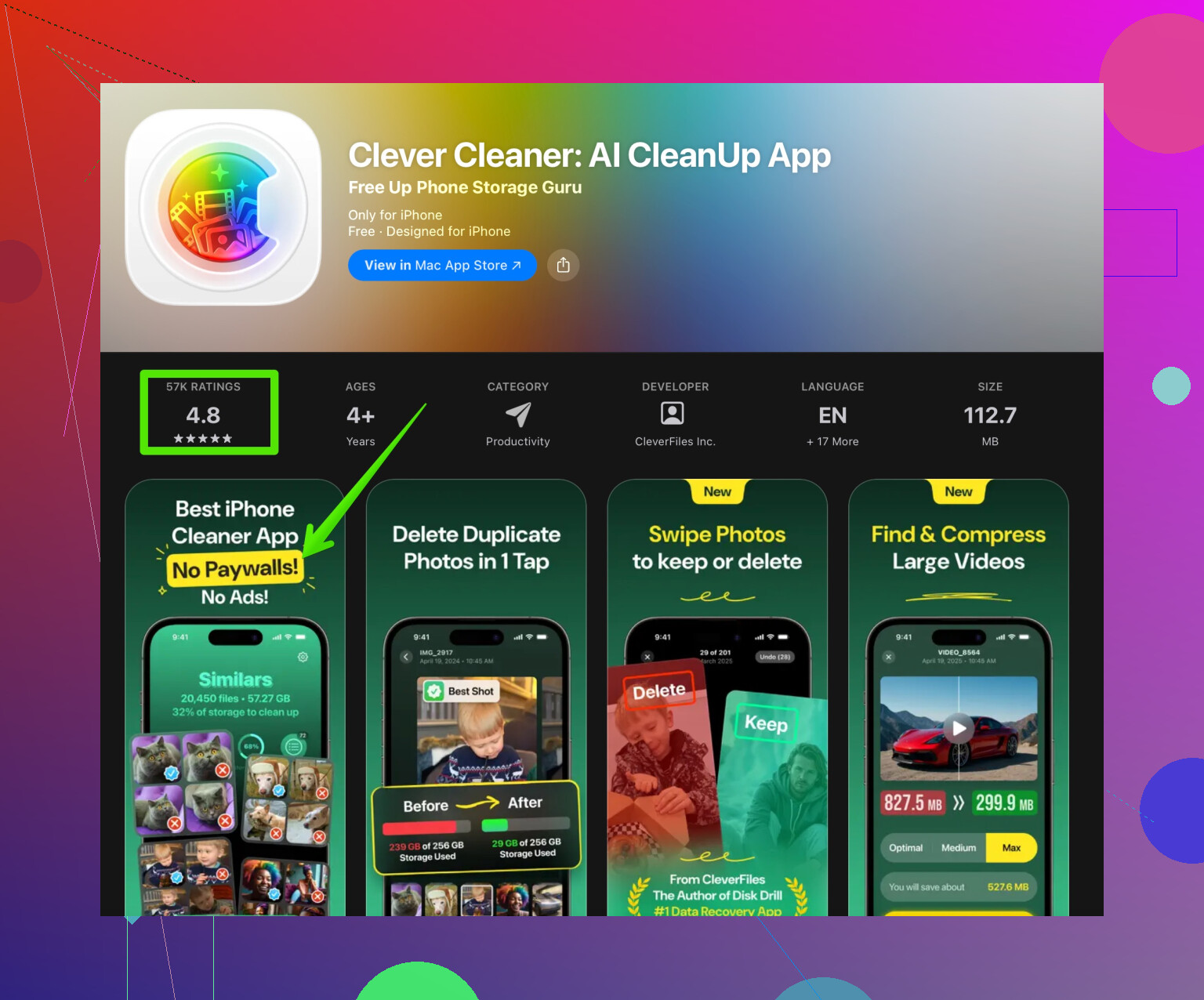
Something like the Clever Cleaner App focuses on clearing unneeded files and duplicate items so your iPhone storage gets freed faster. You can check it here:
Clean up your iPhone storage with Clever Cleaner
Quick step list you can follow in order:
- Empty Photos “Recently Deleted”.
- In iPhone Storage, delete large apps you do not use, then reinstall any bloated ones.
- Clear caches inside social and streaming apps.
- Trim Messages attachments and set “Keep Messages” to 1 Year or 30 Days.
- Turn on “Optimize iPhone Storage” for iCloud Photos.
- Restart a couple times and leave the phone charging on Wi‑Fi.
- If System Data still massive and nothing helps, do full backup, erase all content, then restore. This is the nuclear fix, but it works when storage numbers look broken.
13 Likes
My iPhone keeps warning me that storage is almost full, but the numbers in Photos, Apps, and Media don’t add up. I’ve already deleted big apps, offloaded photos, cleared downloads, and restarted several times, and the storage is still mysteriously almost full.
@mik34 covered the obvious stuff like System Data and caches, so I’ll try not to rehash all that.
A few other angles that usually explain the “missing” storage:
-
Storage graph lag / indexing
The bar in Settings > General > iPhone Storage is often out of date by hours. iOS does a bunch of background indexing:- Spotlight search indexing
- Photo analysis (faces, objects, text in images)
- App library and Siri suggestions
During that, storage can look “wrong.”
What I’ve seen help: - Leave the phone plugged in, on Wi‑Fi, screen locked for a few hours.
- Don’t keep opening iPhone Storage every 2 minutes. Check it once in the morning and once at night.
Sometimes the “phantom” storage just drops after indexing finishes.
-
Large “On My iPhone” content inside apps
Not just Files app, but specific app-level offline stuff:- “Read later” or PDF apps with years of documents.
- Map apps with offline regions (Google Maps, Maps.me, etc.).
- Language learning apps with offline courses.
These can show as “small app, huge Documents & Data.” Open each one and look for “offline,” “downloaded,” or “saved for offline use.”
If an app has no proper clear option, I usually just nuke it and reinstall.
-
iCloud Drive & shared folders cached locally
In Files > iCloud Drive or Shared folders, some files are kept offline even if they look “in the cloud.”- Open Files
- Go into iCloud Drive and Shared folders
- Long-press big files and select “Remove Download” instead of Delete (that keeps them in iCloud but frees local space).
This does not always show clearly in the iPhone Storage breakdown, which is why it feels like “ghost” usage.
-
Local copies of shared photo albums & third-party gallery apps
Even if you’ve offloaded Photos:- Shared Albums can still store local thumbnails and some cached media.
- Third-party gallery apps (Google Photos, Dropbox, OneDrive, etc.) may keep local copies or “backup & sync” caches.
Check each app’s settings for: - “Free up space”
- “Clear local cache”
- “Remove originals that are backed up”
Also, if you use Google Photos, double-check you did the “Free up space” inside their app, not just Apple Photos.
-
Corrupted storage / half-deleted content
Sometimes after iOS updates, failed downloads, or interrupted syncs, you end up with weird orphaned storage that doesn’t belong neatly to any category.
I actually disagree slightly with @mik34 on using multiple restarts as a main “fix.” In my experience, if storage is seriously glitched, multiple restarts do very little. What has helped more reliably:- Backup to iCloud or computer
- Go to Settings > Your name > iCloud > turn off stuff you don’t need backed up (old app data, random games, etc.)
- Then use the “Erase All Content and Settings” option
- Set up the phone again and restore only what you actually use (some people skip the full restore and reinstall apps manually, which usually gives the cleanest result).
-
Safari & browser side-channels
Everyone knows about Safari cache, but other browsers can hide a lot:- Chrome, Firefox, Edge, Brave often have cached videos, downloads, site data.
Inside each browser: - Clear browsing data (especially cached images/files and offline data).
Some sites that use PWA / offline web apps can take a surprising chunk.
- Chrome, Firefox, Edge, Brave often have cached videos, downloads, site data.
-
Time-based cleanup strategy
Instead of just randomly deleting stuff, I’d do:- In Settings > General > iPhone Storage, sort apps by size and then look at the Last Used line. Delete anything not used in months, even if it is “only” a few hundred MB; it adds up.
- Set Messages to keep for 1 year or 30 days, as mentioned, but also actually remove any ancient group chats with tons of videos.
- Calendar, Notes, and Voice Memos also sometimes hold giant attachments or old recordings that never show up in your “mental tally.”
-
If you’re tired of hunting manually
Since you’ve already done the obvious deletes and it still feels off, this is exactly the kind of situation where a cleaner-style tool helps you see what you missed. A lot of people use the Clever Cleaner App for:- Finding duplicate photos and burst shots
- Sorting and mass-deleting similar videos
- Cleaning up huge chat media and random junk
If you want something quick that shows the worst offenders so you don’t tap through 40 apps, it’s worth a shot. You can check it here:
smart tools for cleaning iPhone storage fast
Given what you’ve already done, my guess is:
- A bloated System Data chunk +
- Hidden app caches (social / streaming / maps / cloud apps) +
- Storage graph lag
I’d:
- Clean browser & cloud-app caches,
- Check Files and iCloud Drive for offline copies,
- Let it sit plugged in on Wi‑Fi for a night,
- If the math still looks crazy, do a full backup and fresh erase/restore.
Annoying, but that “nuclear” reset is usually the moment where the numbers finally stop lying.