I’ve been using Google Drive for years for work and personal files, but lately it’s been slow, the search feels unreliable, and I’m worried about privacy and long‑term storage limits. I’m looking for alternatives that are faster, more secure, and still easy to share files with others. What cloud storage or file management services have you switched to that genuinely feel like an upgrade over Google Drive, and why?
A lot of people start looking for something better than Google Drive once they hit the storage ceiling, get tired of mixing Google and Microsoft file formats, or just don’t love having everything tied to one ecosystem. Sometimes it’s also about wanting more control, better pricing for large storage, or just something that fits a specific workflow better. There isn’t one universal “better,” but there are better fits depending on what you need.
Amazon S3 – for people who want serious power
Amazon S3 is less like Google Drive and more like raw storage infrastructure. It’s basically where you store files when you care more about scale and reliability than having a pretty interface. Developers, companies, and people with huge backups use it because it can grow basically forever.
What makes it attractive is the flexibility. You can store massive amounts of data, control exactly who can access what, and only pay for what you actually store. It’s great for backups, media libraries, app files, and anything big.
Fair warning though: it’s not beginner friendly. The AWS interface takes some getting used to and it’s definitely not drag-and-drop simple like Drive. But if you want control and scalability, it’s hard to beat.
Dropbox – for people who want things to just work
Dropbox still has one of the best reputations for simple, reliable syncing. In practice it just tends to behave predictably, which matters more than fancy features for a lot of people.
The apps are clean, syncing is dependable, and Smart Sync lets you keep files in the cloud without filling your disk. It also integrates with a lot of third-party tools and works well for teams.
Downside is mostly the price. You don’t get much free storage anymore, and paid plans can cost more than Google Drive for similar space. But if your priority is reliability over price, it’s still a strong option.
FTP and SFTP – the old-school option that still holds up
FTP (File Transfer Protocol) and SSH File Transfer Protocol (SFTP) are worth mentioning because they solve a different problem. Instead of trusting a big cloud provider, you just connect directly to a server you control or rent.
That means full control, no artificial storage caps beyond your server size, and no being locked into one provider’s ecosystem. Developers still use this constantly for managing websites and servers.
The catch is you need somewhere to connect to and some basic setup knowledge. Not hard once you learn it, but definitely less beginner-friendly than Drive.
OneDrive – the obvious pick if you’re in the Microsoft world
If you live in Windows or Microsoft 365, Microsoft OneDrive is the obvious alternative. It’s already built into Windows, usually included with work subscriptions, and fits naturally with Word, Excel, Outlook, and Teams.
For basic file syncing and office work it does the job well enough. The biggest complaints tend to be around syncing glitches and SharePoint weirdness with large libraries, but for everyday use in a Microsoft environment it’s perfectly solid.
How to manage all of these at once
Honestly the bigger issue isn’t picking one service. It’s that most people end up with several. Work might be on OneDrive, personal files on Google Drive, old projects on Dropbox, maybe a server on FTP… and suddenly you’re juggling five apps and ten browser tabs.
That’s usually the real frustration.
CloudMounter – one app to manage all of them
That’s where something like CloudMounter comes in. Instead of replacing your cloud storage, it connects them all and mounts them as drives right inside File Explorer (Windows) or Finder (macOS).
So your Google Drive, OneDrive, Dropbox, S3, Backblaze B2, FTP servers, all just show up like external drives. You move files around the same way you always do instead of learning another web interface.
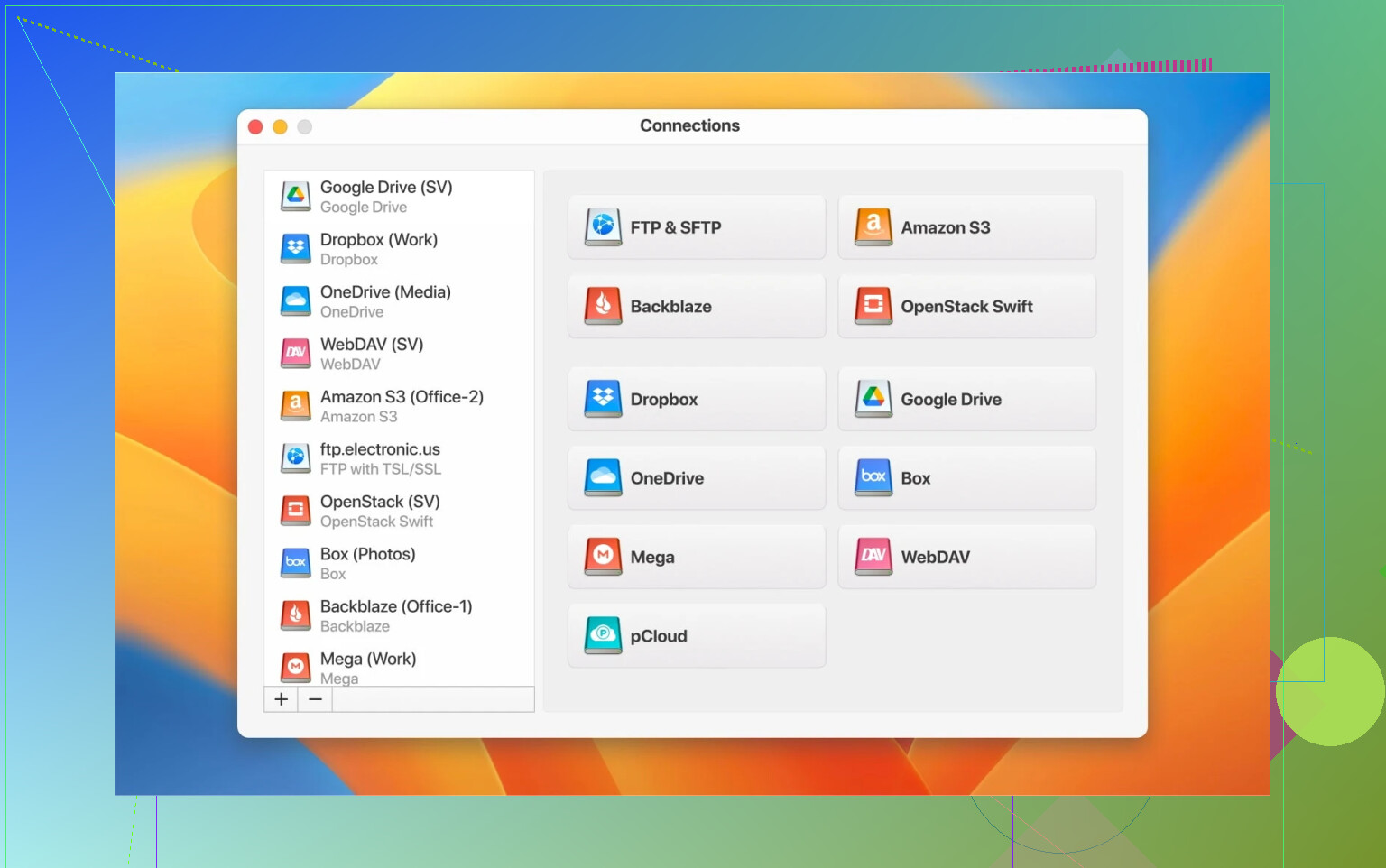
It can mount multiple services at the same time, supports client-side encryption (so files are encrypted before upload), and stays pretty lightweight in the background. It’s especially nice if your files are scattered across different platforms and you just want one place to manage them without the constant app switching.
Honestly, what’s “better” than Google Drive really comes down to what annoys you about it. If it’s price or scale, there are stronger options. If it’s ecosystem lock-in, there are more flexible ones. And if the real issue is juggling too many services… sometimes the best upgrade is just managing them smarter.
13 Likes
You are hitting three issues: speed, search, privacy. Storage limits are more about price than tech.
I agree with @mikeappsreviewer on the “no single winner” idea, but I would not jump straight to S3 or SFTP for everyday use. Those solve scale, not comfort.
Here is what tends to work better than Google Drive for normal daily stuff.
- For personal files with real privacy
Look at Sync.com or Tresorit.
Both use end to end encryption by default.
Pros:
• Zero knowledge, your provider does not see your data.
• Desktop apps feel similar to Dropbox or Drive.
• Sharing links work fine for family and small teams.
Cons:
• Web editors are weaker. You lose the Google Docs feel.
• Search is limited on encrypted data. You search by filename, not file content.
If privacy bothers you more than everything else, move your important folders there and leave low risk junk in Drive.
- For reliable sync and search
Dropbox still wins on sync quality.
Search inside Office and PDF files is decent if you turn on Smart Sync and let it index.
Pros:
• Sync conflicts are clear, not silent.
• Good performance with lots of small files.
• Tons of third party support.
Cons:
• Price per user is higher than Google One.
• Free plan is too small for long term.
If your main pain is “slow, weird sync, missing files”, Dropbox fixes that faster than anything else.
- For people deep into Apple gear
If you use iPhone, iPad, and Mac every day, iCloud Drive fits better than Drive for daily stuff.
Pros:
• Built in, no extra client.
• Desktop and Documents sync on macOS if you want.
• Search in the Files app is fast for most users.
Cons:
• Web UI is weaker than Google.
• Sharing controls feel clunky for non Apple users.
I see a lot of people do: work files in OneDrive or Dropbox, personal stuff in iCloud, and they stop fighting it.
- For your exact mix of problems
You mentioned: slow Drive, bad search, privacy risk, long term limits.
A practical split looks like this:
• Keep old Google Docs in Drive, but stop feeding it new content heavily.
• New office documents in Dropbox or OneDrive, where sync and search are stronger.
• Sensitive stuff, IDs, finance, health, in Sync.com or Tresorit.
• Big archives, photos, videos in cheap object storage like Backblaze B2, not Drive.
Now the question is how to avoid juggling four tabs all day. That is where I think @mikeappsreviewer had the right idea, but I would push it harder.
On desktop, a tool like CloudMounter helps a lot.
You mount Google Drive, Dropbox, OneDrive, S3, B2 as network drives in Finder or File Explorer.
You browse them like disks. Drag and drop between them.
They also support client side encryption, so you get an extra privacy layer on top of whatever provider you use.
For everyday use, this combo works well:
• One “primary” sync service for documents, usually Dropbox or OneDrive.
• One privacy focused service for sensitive stuff.
• CloudMounter on your main machine so everything shows up in one place.
You get better speed, better control over privacy, and you stop worrying about one vendor hitting storage ceilings or changing terms on you.
Short version: there isn’t a single “Drive killer,” there’s a stack that works better together.
I agree with @mikeappsreviewer and @byteguru that you’ll probably end up with multiple services, but I’d split things a bit differently:
1. Fix speed and search first
If Drive feels like molasses and search is missing stuff, I would not jump to S3 or plain SFTP for everyday documents. That is trading bad UX for no UX.
For daily work files:
-
Dropbox if you care most about fast, reliable sync and conflict handling.
It still beats pretty much everyone on sync behavior. If you live in traditional files (Office, PDFs, design files), Dropbox is just less annoying than Drive. -
iCloud Drive if you are heavily on Apple gear.
On a Mac + iPhone/iPad combo, it feels smoother than Drive, especially for Desktop/Documents sync and quick search in the Files app.
I disagree slightly with @byteguru on OneDrive being “good enough” for personal use. It is fine, but I have seen sync corruption and weird path errors way more often than with Dropbox. For actual day to day sanity, I would still pick Dropbox over OneDrive unless you are locked into Microsoft 365.
2. Handle privacy separately
Your privacy worry is legit. Google’s whole model is “we mine a lot, then say we anonymize it.” If that bugs you:
- Sync.com or Tresorit for sensitive stuff
End to end encryption, zero knowledge. The catch: content search is limited because they cannot read your files. So this is not a one to one Drive replacement, more like a vault for IDs, finance docs, contracts, medical PDFs, etc.
Practical combo that works for a lot of people:
- Regular work files in Dropbox or iCloud
- Highly sensitive stuff in Sync.com / Tresorit
- Leave low risk junk and old Docs sitting in Drive until you actually need to move them
3. Deal with long term storage limits realistically
Drive gets painful when you start dumping big media, backups, and “I might need this in 10 years” folders.
For that, object storage is better, but more technical. I would skip S3 unless you’re already familiar with AWS and go with something simpler and cheaper like:
- Backblaze B2 for big archives (photos, raw video, old project zips).
You do not treat it like a normal folder, you treat it like a cold vault. Great price per TB, horrible choice for docs you open every day.
So:
- Working set of docs: Dropbox / iCloud / maybe OneDrive
- Private vault: Sync.com / Tresorit
- Cold storage: Backblaze B2 or similar
- Legacy Docs: stay in Google Drive until you have time to clean up
4. Stop the “six tabs, four clients” madness
This is where I land a bit different from both @mikeappsreviewer and @byteguru. Instead of hunting for the Drive replacement, I would keep multiple services but make them feel like one.
On desktop, CloudMounter actually solves a huge chunk of the pain:
- It lets you mount Google Drive, Dropbox, OneDrive, Backblaze B2, S3, SFTP, etc. as if they are normal disks in Finder or File Explorer.
- You can drag files from “old Drive” straight into “new Dropbox” or your encrypted vault without opening ten browsers.
- It adds client side encryption on top, so even if you stick with Google Drive for some stuff, you can encrypt it before it hits Google’s servers.
This is the boring but effective setup I’d suggest:
-
Pick one main sync service for daily work:
- Prefer Dropbox unless you are locked into Microsoft or all‑Apple.
-
Pick one private vault:
- Sync.com or Tresorit for your “if this leaks I scream” data.
-
Use cheap cold storage for big archives:
- Backblaze B2, S3, etc., only for stuff you rarely touch.
-
Install CloudMounter on your main machine:
- Mount all of the above plus your old Google Drive.
- Slowly migrate folders out of Drive as you go, instead of a huge painful “big bang” move.
No single service is magically better than Google Drive at everything. But a small mix like this tends to be faster, more private, and cheaper at scale, without living in AWS consoles or hand‑holding SFTP all day.
And yeah, Drive search is not just you, it really has gotten worse with large messy accounts.
If you strip this down to “what’s nicer than Drive for daily life,” I think everyone here is circling the same conclusion, but from different angles.
@byteguru leans toward splitting by type of data, @suenodelbosque leans toward splitting by problem (speed vs privacy vs scale), and @mikeappsreviewer leans toward accepting that there is no single winner. I agree with the “no single winner” part, but I think all three are still a bit too cloud‑provider‑centric.
The overlooked piece is: once you accept multiple services, your front end matters more than which clouds you pick.
That is where something like CloudMounter actually becomes a core part of the setup instead of just a utility.
Why I’d focus on CloudMounter as the “hub”
Instead of obsessing over whether Dropbox, OneDrive, Sync.com or Tresorit is “better” than Drive in isolation, treat them as backends and ask: “How painful is it to use 2 or 3 of these every day?”
CloudMounter turns all of them into regular drives in Finder / File Explorer, which changes how you work:
Pros of CloudMounter
-
Central view of everything
Google Drive, Dropbox, OneDrive, S3/B2, SFTP, etc show up as normal disks. No more hunting browser tabs. -
Easy migration path
You can literally drag a folder from your old Google Drive mount into your new Dropbox or Tresorit mount. No export / import rituals. -
Client side encryption
You can put an encryption layer on top of providers that are convenient but not private. For example: keep using Drive for collaboration, but encrypt your “sensitive” folder locally so Google never sees the raw contents. -
Fewer desktop sync agents
Instead of running three or four native clients, you can keep most storage mounted on demand to save RAM and background processes.
Cons of CloudMounter
-
Not ideal for very heavy, real‑time work
Editing huge media projects directly on a mounted cloud drive is slower than a local sync folder. You still want local copies for big video / dev repos. -
Sharing & advanced features still live elsewhere
You will still jump into the native web UI for link sharing, granular permissions, or service specific tools. -
One more critical dependency
If CloudMounter breaks or is misconfigured, your “single pane of glass” disappears. You are trading many small annoyances for one big central tool you need to trust.
How this differs a bit from what others suggested
- I agree with using multiple clouds like @byteguru and @mikeappsreviewer, but I would decide clouds second, access method first.
- I partially disagree with using something like S3 or SFTP early, as @suenodelbosque pointed out. Those are great for archives and techy use, not daily office work, so mount them in CloudMounter as “vaults” you dip into, not your main workspace.
A practical layout that avoids Drive pain
Once CloudMounter is your “file system hub,” then pick backends this way:
-
One “workhorse” sync service for daily docs
Dropbox or OneDrive, depending on whether you are more in the Google / Apple world or Microsoft world. Mounted and also partially synced where speed is key. -
One privacy vault
Sync.com or Tresorit for finance, ID scans, legal docs. Mounted through CloudMounter when needed, kept out of regular search so they are not accidentally shared. -
One cheap cold storage bucket
Backblaze B2, S3, etc for backups and giant archives. Mounted only when you need to move or fetch big chunks. -
Google Drive left in place for existing Docs and Sheets
Mounted as well, but you intentionally stop feeding it new long term files.
From your perspective, you mostly live in Finder or File Explorer, and CloudMounter is the thing that makes “many services” feel like “one large, organized storage space.” The exact mix of Dropbox vs OneDrive vs Sync.com then becomes a pricing and ecosystem question, not a single huge migration decision.