I cleared temporary files and cache on my iPhone because storage was almost full, but I barely got any space back. I expected a bigger drop in system data or other storage, and now I’m not sure what’s actually taking up room. I need help figuring out why clearing temporary files doesn’t free up much space and what I should check next.
System Data being bigger than all your apps put together looks wrong. I hit that too, and Apple does not spell out what is filling it or what to do next.
Why tiny apps end up eating gigabytes
What I saw was simple. Apps like Instagram, TikTok, Spotify, and browsers keep pieces of what you view on the phone. Video chunks, thumbnails, audio bits, page assets. They do it so the next load feels faster.
The catch is iPhone storage keeps collecting this stuff. iOS does clean some of it, but mostly when storage gets low enough to force the issue. Not on any clean schedule. So an app listed at 60 MB in the App Store ends up sitting on 1 GB, 2 GB, sometimes more after months of normal use. No bug there. Annoying, though.
Why cache cleanup often feels useless
I learned this the hard way.
First, once you open the apps again, they start filling the cache right back up. Give it a few hours of scrolling and the meter starts climbing again.
Second, cache is often not the main problem. My photo library was the bigger mess by far. Duplicate-ish pics, old screen recordings, 4K clips I forgot about, screenshots from receipts and shipping updates. Clearing Safari bought me some space, sure, but it did almost nothing next to cleaning photos and videos.
How I cleared temp files without messing up the phone
I stuck to the low-risk stuff first.
- Restart the iPhone
A reboot once a week helped more than I expected. It clears stray temporary logs and small leftover system files. No settings changed. No app data lost.
- Clear Safari data
Go to Settings > Apps > Safari > Clear History and Website Data.
This removes saved site cache, images, scripts, and some browsing leftovers. It also signs you out of a lot of sites, so be ready for passwords and 2FA.
- If you use Chrome, clear it inside Chrome
Open Chrome, then go to Settings > Privacy and Security.
Safari and Chrome handle this separately. I missed that at first.
- For apps with no cache button, delete and reinstall them
Instagram, Facebook, TikTok, a bunch of others, they often do not give you a proper ‘clear cache’ option on iPhone. Deleting the app and installing it again was the only thing I found that wiped the built-up app junk fully. Your account stays fine, but offline downloads and local app preferences might need to be set again.
Why the temp files keep returning
Nothing is broken. This is how the apps work.
Every session adds more local data. Clearing cache wipes the pile you already had, then the next session starts a new pile. So I stopped treating it like a one-time fix. It is maintenance. Same as emptying Downloads on a laptop.
Where things started going bad for me
The phone felt worse once free storage dropped under roughly 10 to 15 percent.
At that point I noticed stutter, camera delay, random app reloads, and more crashes. Before that, the extra cache was ugly in the storage graph but not always noticeable. After crossing that line, performance dipped fast.
What helped most without using a computer
Manual cleanup fixed browser junk and app cache, but it did not touch the real storage hog, my photo library.
I used Clever Cleaner for that part. What stood out to me was how direct it was.
The Heavies section lines up your biggest files first, with sizes shown clearly. Mine was full of old videos and screen recordings I had forgotten existed. Seeing the biggest offenders at the top saved a lot of digging.
The Similars section groups near-matching photos, not only exact duplicates. Burst shots, five tries at the same angle, blurry first attempts, stuff like that. I went through batches and kept the best one. Faster than sorting the library by hand, no contest.
It processes on the device, which mattered to me more than I expected.
After I cleared about 20 GB between duplicate-ish photos, old videos, and the normal cache cleanup steps, the phone stopped lagging. System Data still moved around some, but it stopped being a problem because storage was no longer jammed right to the edge.
17 Likes
Clearing temp files on iPhone often does almost nothing because temp files are often a small slice of the problem.
What usually eats space:
-
Photos and videos.
A few 4K clips eat more space than months of browser cache. One minute of 4K/60 fps video is often around 400 MB. Ten minutes gets ugly fast. -
Messages.
Photos, voice notes, stickers, and video attachments sit there for years. Check Settings > General > iPhone Storage > Messages. -
Downloaded media.
Spotify, Netflix, YouTube, Podcasts. Offline files do not show up in an obvious way, and ppl forget they exist. -
App Documents and Data.
This is different from temp cache. A chat app with years of media or a note app with scans grows huge. Clearing cache won’t touch much of it. -
iOS storage reporting lag.
This part matters. iPhone storage numbers do not always update right away. I’ve seen it take hours after cleanup, sometimes after charging and rebooting.
I agree with @mikeappsreviewer on one part, cache rebuilds fast. I disagree a bit on restart doing much. It helps with small temp junk, sure, but if you need 10 GB back, a reboot won’t save you.
Best move is to look at iPhone Storage and sort by biggest apps first. If Photos is huge, use Clever Cleaner to find duplicate shots, large videos, and similar pics faster. That tends to free real space, not 300 MB fake wins. Also worth checking this short clip on how to free up iPhone storage fast. Storage bugs me too, tbh.
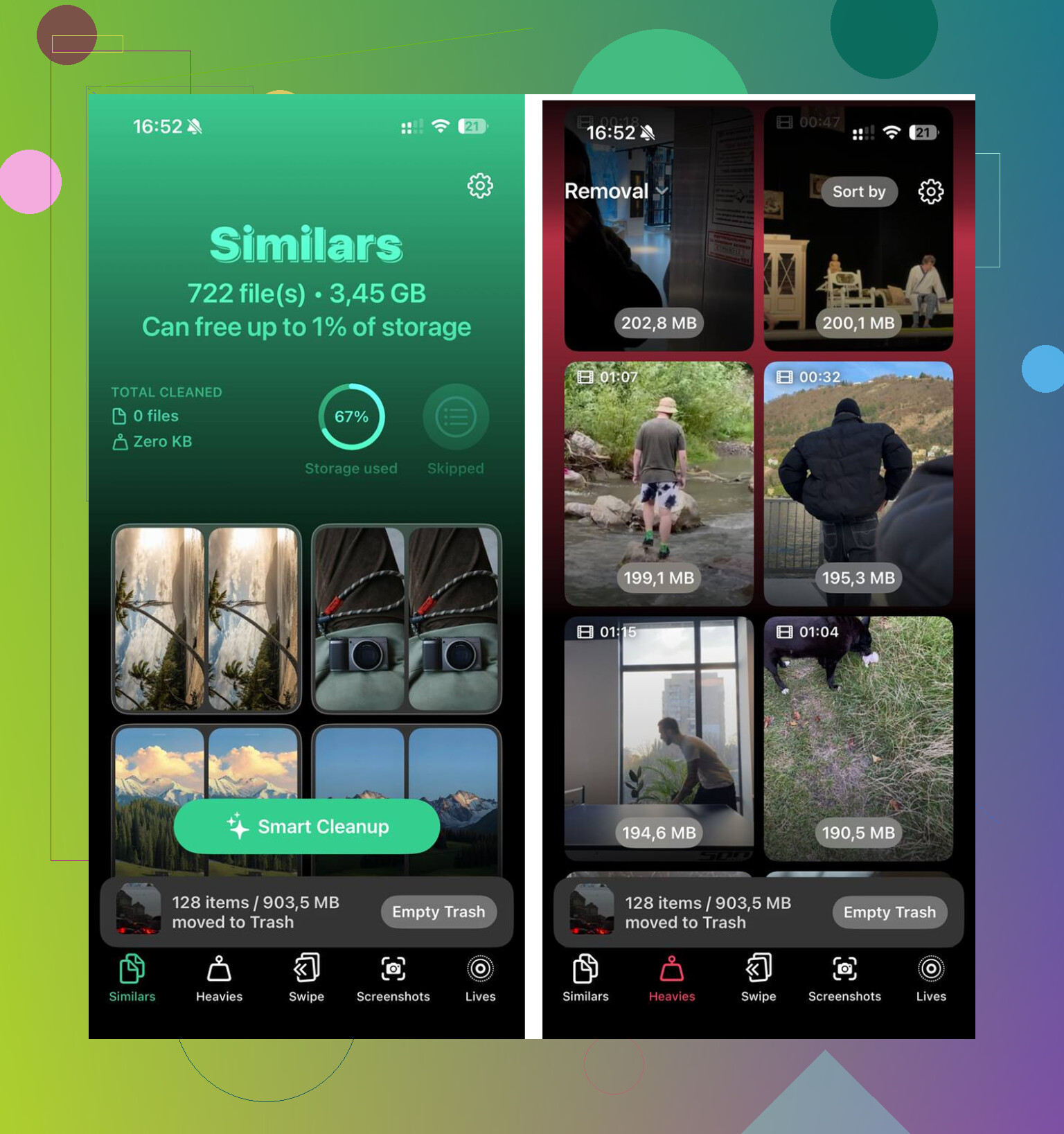
Clearing temp files on iPhone usually feels pointless because temp files are rarely the main thing eating storage. ‘System Data’ also isn’t a neat trash bin you can empty on command. It includes caches, logs, indexes, update leftovers, fonts, Siri voices, streamed media fragments, and stuff iOS re-creates when needed. So yeah, you delete 500 MB and iOS quietly builds half of it back.
I agree with @mikeappsreviewer that cache comes back fast. I kinda disagree with @voyageurdubois only on one thing: sometimes the storage chart itself is the problem. iPhone storage reporting can be wildly delayed or just weird for a while.
What I’d check next instead of repeating cache wipes:
- Settings > General > iPhone Storage, then wait a minute for it to fully calculate
- Large Messages attachments
- Voice Memos
- Files app downloads
- Podcast downloads
- WhatsApp/Telegram media inside the app, not just in iPhone Storage
- Recently Deleted in Photos
Also, if Photos is the real hog, cache cleaning won’t do squat. That’s where something like Clever Cleaner actually makes more sense, especially for duplicate pics, similar shots, and huge videos. This Clever Cleaner for iPhone storage cleanup review explains it better than Apple does, tbh.
Short version: temp files are usually the crumbs, not the pizza.

What usually surprises people is this: iPhone storage is not a normal file cabinet. “System Data” is partly a moving buffer, partly indexes, partly purgeable stuff, and partly things iOS refuses to explain clearly. So deleting temp files may free space, but the graph barely changes because iOS reclassifies or rebuilds some of it almost immediately.
I mostly agree with @voyageurdubois, @boswandelaar, and @mikeappsreviewer that cache is rarely the main villain. Where I disagree a bit is the idea that System Data is always “real” usage in the practical sense. Some of it is more like reserved working space. It looks scary, but it is not always the chunk you need to chase first.
A few things people miss that are not the usual “clear cache” advice:
- Mail attachments and offline mailboxes can balloon quietly
- Books/PDFs in Apple Books
- GarageBand, iMovie, CapCut, and similar apps store huge project assets
- Safari Reading List offline saves
- App update packages waiting in the background
- iCloud Drive local copies under Files
Also, if your phone was nearly full, iOS may have already compressed and purged whatever temp data it safely could. That means by the time you manually clear cache, there just is not much left to reclaim.
The best clue is not System Data. It is whether free space keeps dropping again after a day or two. If yes, one app or your photo/video library is the real leak.
If Photos is the issue, Clever Cleaner is actually useful for the obvious stuff:
Pros:
- fast at spotting duplicate and similar photos
- good for surfacing large videos
- easier than hunting manually
Cons:
- not a magic fix for true System Data
- you still need to review before deleting
- less useful if your storage problem is downloads, messages, or app documents
So yeah, clearing temp files often feels pointless because it kind of is. The big wins usually come from media libraries, downloads, and bloated app data, not from cache crumbs.