I keep deleting photos, videos, and apps on my iPhone, but my storage fills back up almost right away. I already cleared recently deleted items and restarted the phone, so I’m not sure what’s using the space. I need help figuring out why iPhone storage keeps filling up after deleting files and what I can do to actually free up storage.
I hit this on my own iPhone a while ago. Storage kept shrinking even during weeks where I barely touched the thing. It wasn’t one big file hiding somewhere. It was a pileup. iOS keeps stacking background junk, app caches, message attachments, photo clutter, all of it.
Check the biggest category first
Don’t start deleting random stuff.
Go to Settings > General > iPhone Storage and give it a second to load. That page tells you where the space went, app by app and category by category. Photos, apps, messages, iOS, system data. Once I saw the top category, the cleanup got way less messy.
Photos usually eat the most space
On most phones I’ve looked at, Photos was the main problem.
And it wasn’t always obvious stuff. It was things like:
- Five near-identical shots of the same dog
- Old screenshots from receipts, maps, tracking numbers
- Live Photos
- Burst shots
- Big video files you forgot existed
A lot of people open the Duplicates album, merge a few items, and think they’re done. I did too. Didn’t fix much. The bigger drain was similar photos, not exact copies.
If Photos is the top offender
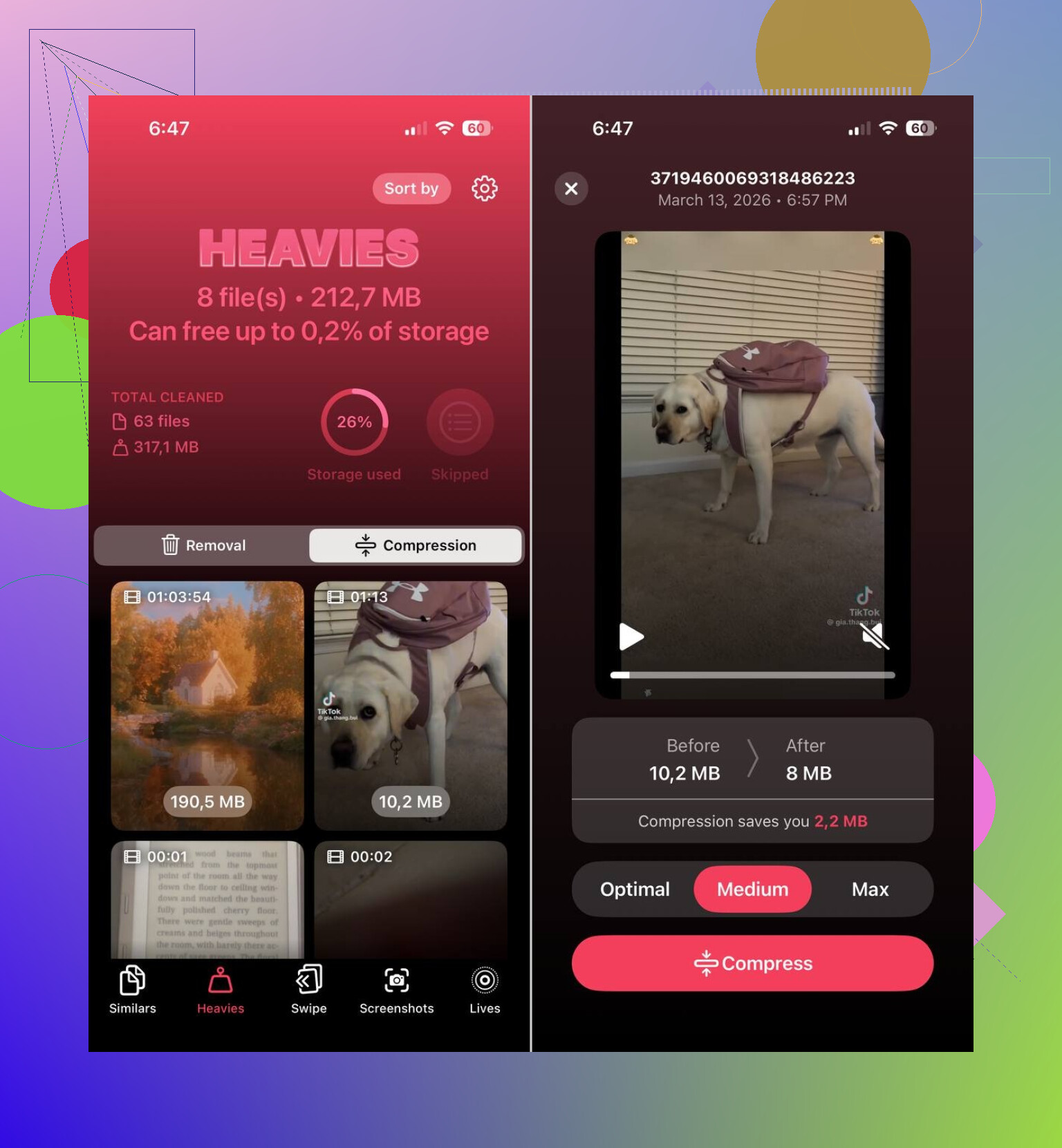
If your photo library is the biggest block, I’d start with Clever Cleaner before trying to sort ten thousand images by hand.
What stood out for me was the kind of mess it catches:
- Similar photos
- Duplicate photos
- Screenshots
- Live Photos
- Large media files
The similar photo grouping helped the most. Apple’s own cleanup stuff is fine for exact duplicates, but it misses the common case where you took three or four shots half a second apart. Clever Cleaner groups those together and picks a best shot, then you review it yourself.
I liked one part in paticular. Nothing gets wiped on its own. You still look through the suggestions first, which matters if one “bad” photo has the only version where someone’s face isn’t blurred.
Live Photos were another sneaky one on my phone. They take more room because each one includes the still image plus the short motion clip. Turning older Live Photos into regular photos freed more space than I expected.
Apps get bloated too
Photos get blamed first, sure. Apps were second on mine.
Streaming apps, social apps, chat apps, all of them keep cached files and downloaded data. The app icon says 300 MB, then you open storage and see it chewing through 4 GB. Seen it a bunch.
In iPhone Storage, look at the largest apps first. If you barely use one, I’d do one of these:
- Offload it
- Delete it
- Reinstall it so the built-up data gets cleared
Apple also has the Offload Unused Apps option, which removes the app but keeps your documents and settings.
Messages gets ignored for years
This one catches people off guard.
Texts themselves don’t matter much. Attachments do. Old videos, GIFs, voice notes, memes, screenshots, random clips from group chats. They sit there forever unless you remove them.
I’ve seen old conversations hold gigabytes on their own. If your storage still looks bad after photos, check Messages and clear large attachments first.
System Data is annoying
If Photos and Apps look normal and the phone still claims storage is full, look at System Data.
This area includes cache files, logs, temp files, and other iOS leftovers. You don’t get much control over it. Sometimes it grows more than it should. Not much fun there. Restarting the phone sometimes trims it a bit, sometimes not.
The order I’d follow
This is the sequence I’d use:
- Open Settings > General > iPhone Storage
- See which category is biggest
- If it’s Photos, clean that up first with Clever Cleaner
- Remove big videos and dead screenshots
- Check the largest apps
- Clear message attachments
- Restart the phone and check storage again
From what I saw, the phone usually isn’t filling up out of nowhere. It’s slow buildup. Photo library growth, app cache, bloated chats, system temp files. You don’t notice it for months, then one day iOS throws the storage warning and it feels sudden.
11 Likes
What usually gets missed is sync behavior.
If you use iCloud Photos with Optimize iPhone Storage off, deleted stuff gets replaced by full-res items syncing back down. Same with Messages in iCloud, mail attachments, Files app folders, and offline content from Spotify, Netflix, YouTube, Podcasts. You delete 2 GB, iPhone re-downloads 1.8 GB, and it feels broken.
I agree with @mikeappsreviewer on checking storage categories first, but I wouldn’t jump to app reinstalls right away. Some apps re-pull all cached media after reinstall, which is annoyng and sometimes worse.
Check these spots.
Settings > your name > iCloud. See what is syncing.
Photos > Optimize iPhone Storage, turn it on.
Settings > Apps > Messages, keep messages for 1 year or 30 days.
Mail app, remove big attachments or old accounts with huge local caches.
Files app > On My iPhone > Downloads.
Streaming apps, remove offline downloads inside each app.
Safari > Clear History and Website Data.
Podcasts app is sneaky too, it hoards downloads.
If Photos is still the main problem, Clever Cleaner is worth a look for sorting similar shots, screenshots, and heavy files faster. This is a solid example of smart ways to clean up iPhone storage and free space fast.
One more thing. If System Data stays huge for days, do an encrypted backup, erase the phone, restore. Annoying fix, but it works more often than Apple admits.

One thing I’d add to what @mikeappsreviewer and @waldgeist said: sometimes the storage is not “coming back,” it just never got fully released yet. iOS can lag pretty hard updating storage totals, esp after deleting a lot at once.
A few things people miss:
- Mail downloads and attachments
- Notes with scanned PDFs
- Voice Memos
- WhatsApp/Telegram media inside the app, not Photos
- Downloaded maps in Google Maps or Apple Maps
- Books, PDFs, and audiobook files
- GarageBand/iMovie project files if you ever used them
Also check this: Settings > Camera > Formats. If you shoot in “Most Compatible,” videos and photos can be bigger than they need to be. HEIF/HEVC saves space.
I kinda disagree with reinstalling apps as an early step. Some apps just re-cache everything again, so you do all that work for nothing. Better to clear downloads from inside the app first.
If photo clutter is the main issue, Clever Cleaner is actually useful for finding similar pics, screenshots, and large files faster than doing it manually. And if you want a decent walkthrough on how to free up storage on your iPhone without deleting everything, that covers the basics pretty well.
If the space still vanishes, I’d bet on sync/downloaded content, not “mystery files.” That’s usualy the real culprit.
One angle I don’t see stressed enough by @waldgeist, @stellacadente, and @mikeappsreviewer: failed indexing and media libraries that don’t reconcile cleanly.
Sometimes iPhone storage “grows back” because the database tracking Photos, Messages attachments, or Files metadata gets out of sync. You delete content, but iOS keeps a bloated index, thumbnails, or processed versions around longer than it should. That’s why the category total can stay inflated even after obvious cleanup.
A few less-mentioned places to check:
- Settings > Siri & Search: some apps build large search indexes
- Photos shared library/shared albums: deleting from your camera roll may not touch shared items
- Edited videos in Photos: the original plus edit data can still take space
- Third-party camera apps: some save locally outside the main Photos flow
- Downloaded translation voices, dictionaries, accessibility voices
- Apple Music cache even without obvious offline playlists
I mildly disagree with the “erase and restore” move as the next step for everyone. It works, sure, but it’s a pain and often overkill unless System Data is truly stuck for several days.
What I’d try first is this:
- Turn off the biggest sync-heavy app features temporarily
- Leave the phone charging on Wi-Fi overnight
- Recheck storage the next morning
That gives iOS time to recalculate and purge stale cache.
If photos are still the messiest part, Clever Cleaner is decent for reviewing similar shots fast.
Pros
- good at spotting lookalike photos
- helps find bulky media quickly
- easier than manual library digging
Cons
- you still need to review suggestions carefully
- not much help if the issue is mostly system cache or sync re-downloads
- cleanup apps can’t fully control iOS storage bugs
So yeah, if space keeps refilling almost immediately, I’d suspect index/cache lag or sync repopulation, not that your deletions “didn’t work.”