I checked my iPhone storage and noticed apps are taking up more space than my photos, which doesn’t make sense to me. I haven’t added many new apps, so I’m trying to figure out what is using so much storage and how to free up space without deleting anything important. Can someone explain why iPhone apps use so much storage and what I should check first?
Why the “Applications” bar gets huge on iPhone
I ran into this too, and yeah, it feels broken when the storage chart says Applications ate a giant chunk of space for no obvious reason. Worse when it jumps overnight, or when you remove stuff and the bar barely moves.
What iPhone labels as “Applications” is not only the apps you installed. It usually includes a few separate parts:
What is inside “Applications”
-
The app itself
This is the install file, the code needed to launch it. -
Your app data
Saved logins, preferences, local files, downloads, game saves. -
Support files
Language files, assets, extra packages the app uses. -
Cache
This is the part I kept underestimating. Social apps, video apps, browsers, all of them pile up temp files.
Why it doubles out of nowhere
From what I saw, cache growth is the usual reason. If you spent time in TikTok, Instagram, YouTube, Netflix, Spotify, stuff like this, the phone stores temp data so the app loads faster later. Then iOS updates the storage count when it gets around to it, so the jump looks random even though the files were already building up.
Photos are easier to understand because they sit there as fixed files. Apps keep making more side data the longer you use them. So an app you downloaded at 300 MB ends up sitting on 3 GB after months. I had this with a podcast app and a map app. The install size was small. The leftover data was not.
Offloading is not the same as deleting
This part trips people up.
If you choose Offload App, iPhone removes the app package but keeps your documents and data. So if a game uses:
- 200 MB for the app
- 4 GB for downloaded content and cache
Offloading gets you back around 200 MB. That’s it.
If you want the full space back, use Delete App. That wipes the app and its stored data. If the storage graph still looks wrong after deleting, iOS is sometimes slow to refresh it. I’ve seen it take a while. Sometimes some leftover system storage hangs around too.
Where to check the real numbers
Go here:
Settings > General > iPhone Storage
Wait for the list to finish loading. Then tap any app. You’ll usually see two lines:
- App Size
- Documents & Data
That screen is the closest thing to a real answer on iPhone. It shows whether the problem is the app install or the stuff the app collected over time.
Why the phone feels slow when storage is low
This was the part I noticed first. My phone got sluggish before I even figured out where the space went. Camera opened slow. Apps quit. Typing lagged. A few things froze for no clean reason.
Low free space seems to make iPhone stumble because iOS still needs room for temp files, updates, indexing, and normal background tasks. Once you get near the “Storage Almost Full” warning, performance tends to get ugly fast. At least mine did.
What I tried first
I did the usual cleanup round:
- deleted old messages
- cleared Safari data
- removed files from Downloads
- checked large attachments
- deleted apps I barely touched
It helped a bit. Not much. It was slow, annoying, and I kept hitting dead ends.
The part that helped me sort it faster
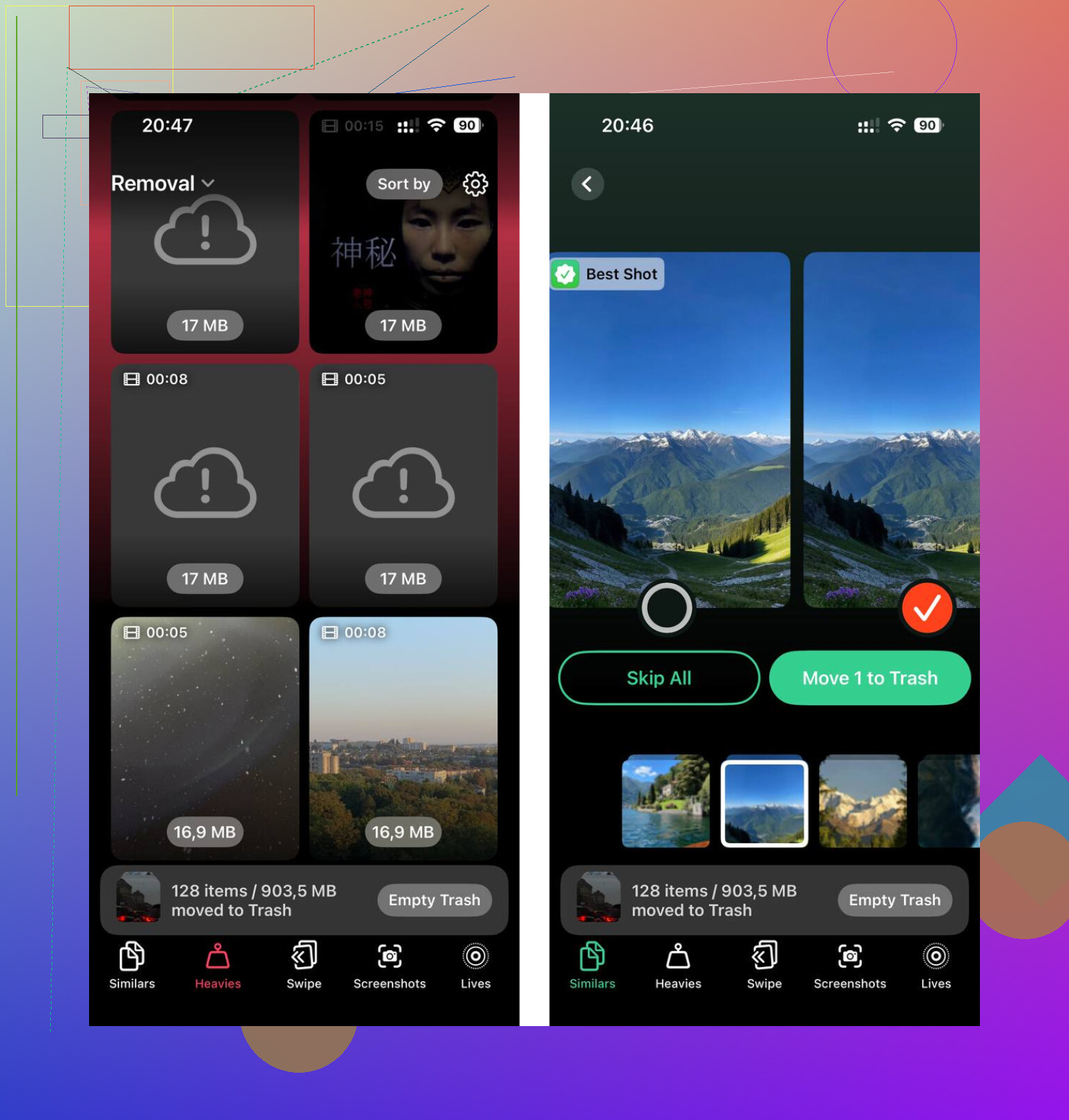
I ended up using Clever Cleaner after getting tired of poking through everything by hand.
What stood out for me was the file sorting. I found old 4K clips I forgot I even had. The “Heavies” section made large media easy to spot without scrolling forever. I also used the similar photo scan to cut down duplicate shots and bursts. For screenshots, seeing the file sizes helped me decide what was worth deleting and what wasn’t.
One thing I checked before keeping it installed was privacy. From what I saw, the processing stays on the phone, which mattered to me.
If you want the short version
If “Applications” looks too large, the usual cause is cached files and app data, not the app install itself.
If offloading did almost nothing, that’s normal. It removes the app, not the bulk of the stored data.
If you want to verify it, open iPhone Storage and compare App Size vs Documents & Data for the worst offenders.
And if your phone feels weirdly slow, low storage is often part of it. I ignored that for too long tbh.
17 Likes
Applications being bigger than Photos is normal on iPhone. Annoying, but normal.
A lot of the space sits in app data you don’t notice:
video downloads, offline music, message attachments inside apps, browser data, old update files, and bloated caches. Some apps grow fast. TikTok, Instagram, YouTube, Spotify, Discord, Maps, Telegram, and games are usual culprits. A single game with downloaded assets can hit 5 GB to 20 GB. Photos often stay smaller if iCloud Photos is on and “Optimize iPhone Storage” is enabled.
I’d slightly disagree with @mikeappsreviewer on one point. Cache is a big reason, but Messages and media-heavy apps are often the sneakier reason. People check Photos, then forget iMessage threads hold tons of videos and voice notes.
What to do:
Go to Settings, General, iPhone Storage.
Sort the biggest apps.
Check Messages, Safari, Music, TV, Podcasts, Files, and any streaming app.
Inside those apps, remove offline downloads.
For Safari, clear history and website data.
For Messages, delete large attachments and old conversations.
If an app has no clear cache button, delete and reinstall it. That wipes the junk better than offloading.
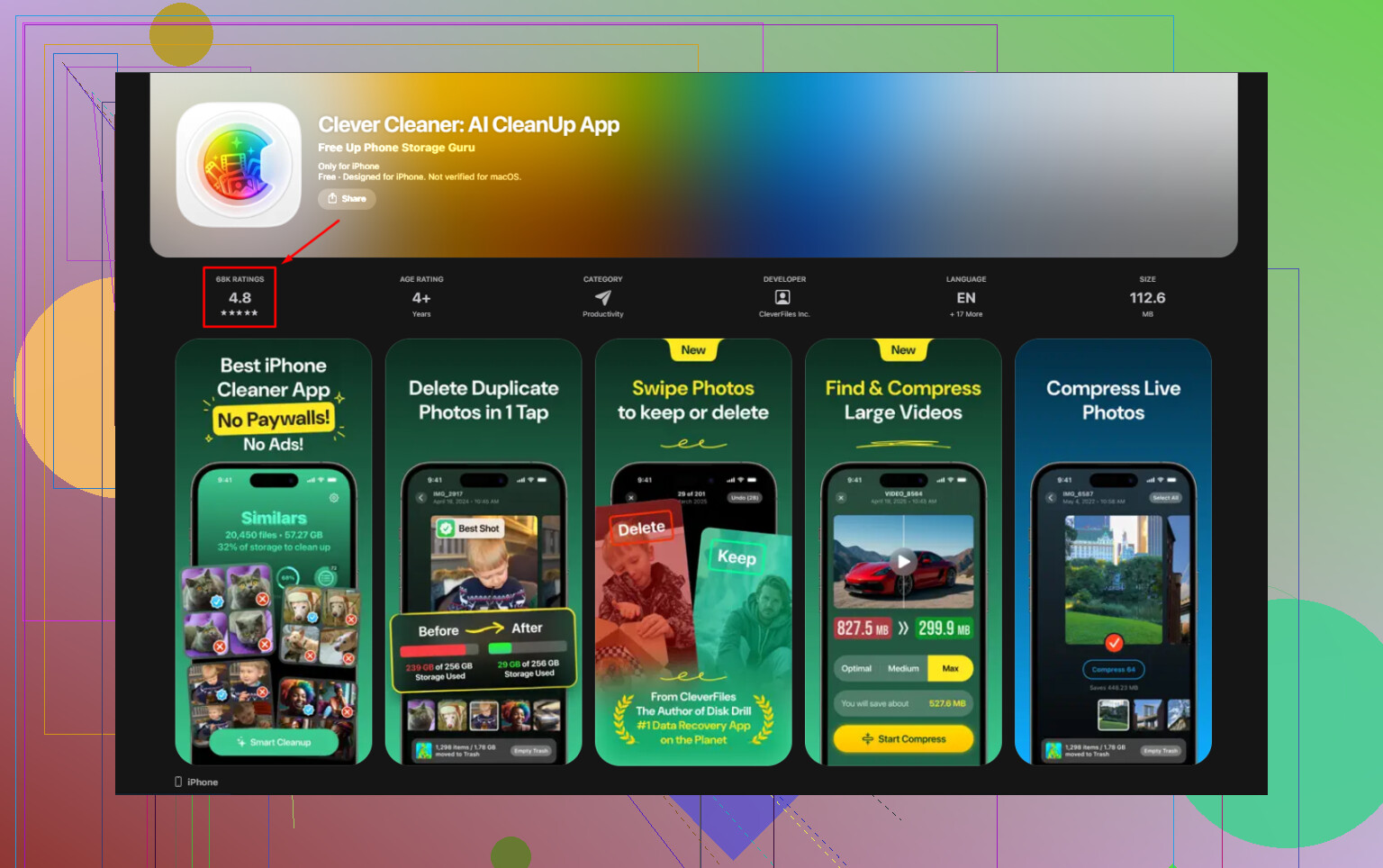
If you want a faster cleanup, Clever Cleaner is worth a look for finding large videos, duplicate pics, and other space hogs. It shows up a lot in lists of free iPhone cleaner apps, including top free iPhone cleaner apps worth checking.
Also reboot after cleanup. iOS storage totals lag and look wrong sometmes.
Applications being bigger than Photos is actually pretty normal on iPhone, even if it looks wrong at first.
I mostly agree with @mikeappsreviewer and @sterrenkijker, but I’d push one extra angle: sometimes Photos looks smaller not because apps are huge, but because your photo library is partially offloaded to iCloud. If “Optimize iPhone Storage” is on, the phone keeps lighter versions of pics locally, while apps keep their full junk locally. So the comparison is kinda unfair.
Another sneaky one is in-app downloads you forgot about:
- Netflix/YouTube/Spotify offline content
- Google Maps offline areas
- podcasts
- voice messages
- editing assets from CapCut, Canva, Lightroom, etc.
Also, some apps reserve storage and don’t give it back cleanly. iOS storage reporting can be wonky too, ngl.
What I’d check that they didn’t really stress:
- Mail app and downloaded attachments
- Files app, especially On My iPhone
- Voice Memos
- GarageBand/iMovie project files
- WhatsApp/Telegram media management inside the app itself
If you want to clean visual clutter faster, Clever Cleaner is actually useful for spotting large videos, duplicates, and screenshots without digging through albums forever. That helps when the “apps vs photos” thing turns out to be both, lol.
Also this video is decent if you want a free walkthrough: watch how to clear iPhone storage for free
Short version: it’s usually cached data, downloads, attachments, and iCloud optimization making Photos look smaller than they really are. Not broken, just annoyng.